Administrator dashboard
Overview
The administrator Dashboard displays the operational overview for the current site. It uses the site name as its title and summarizes the available site, device, and video information.
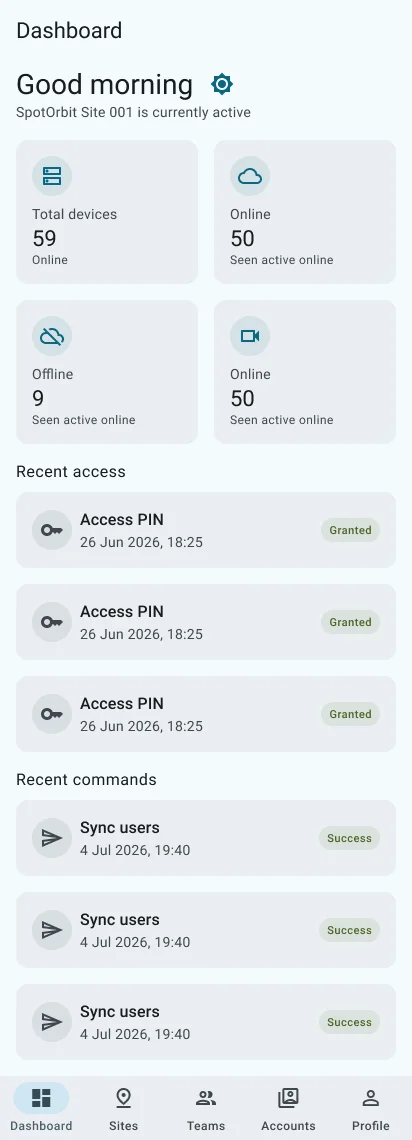
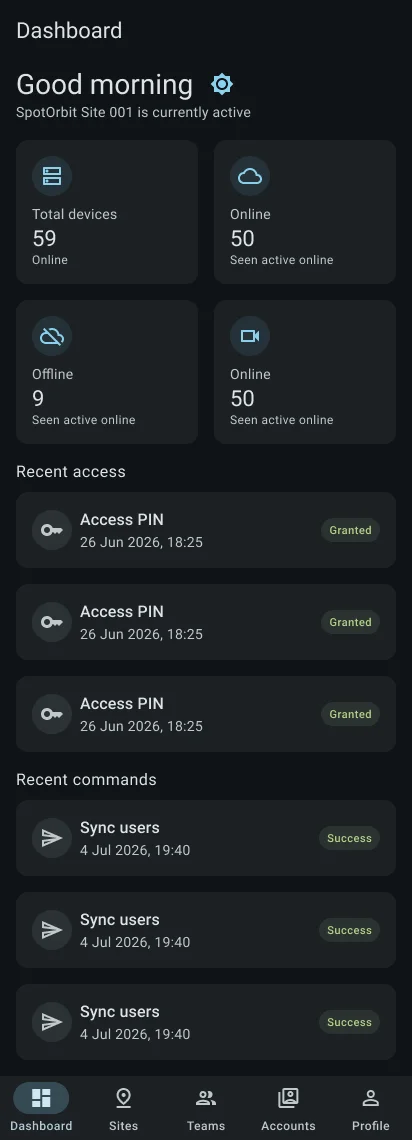
Pull down to refresh the overview and resynchronize the site's device status. If there is no current site, the dashboard shows an empty state.
Review the dashboard
Open Dashboard
Select the first tab in the administrator navigation.
Confirm the site
Read the page title to identify which site's data is displayed.
Review the summary
Use the cards and sections to identify areas requiring further inspection.
Refresh the data
Pull down to reload the overview and device status feed.
Frequently asked questions (FAQ)
No. The current mobile dashboard displays the overview of the current site.
A current site may not be available, or its overview may have failed to load. Retry by pulling down.
Open Sites and select the required location.