Videos
Overview
Videos lists the active site's cameras with their name, latest timestamp or camera key, and status. Opening a camera provides its status and media areas, including the supported live, snapshot, clip, and event views when data is available.
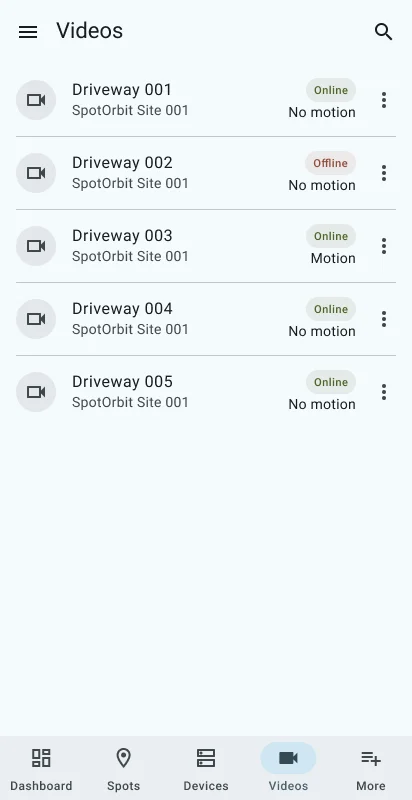
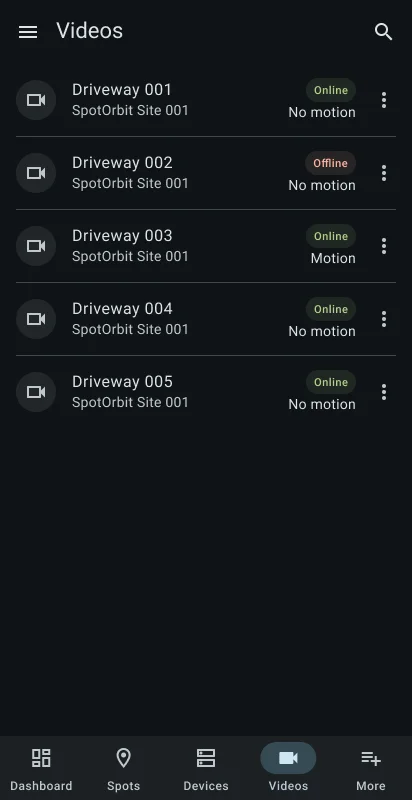
Filter cameras by All, Online, or Offline. Sort by name, status, last seen, or updated time and reverse the direction. Additional pages load near the end of the list.
Inspect video equipment
Open Videos
Select Videos and confirm the active site.
Find a camera
Use search, status, sorting, and direction controls to narrow the list.
Open camera details
Select a camera to review its identity, state, timestamps, and available media or event sections.
Open available media
Use the live, snapshot, or clip control only when the camera detail makes that media available.
Frequently asked questions (FAQ)
Yes. Choose All, Online, or Offline.
The selected camera may be offline or the corresponding media may not be available from the service.
No. It is scoped to the manager's active site.
Related content
- Manager dashboard — Review video summary information.
- Devices — Inspect access and site hardware.
- More manager tools — Review site-wide events.