Account info
Use Account info when you need more than the account list provides or when you need to change an account's role or access state.
Overview
An account can be inspected in two ways. Details opens a quick drawer over the Accounts list, while More opens the full account page. Both show identity, role, dates, and related sites. The full page also shows lifecycle status, provides navigation between accounts, and keeps Edit role and Disable or Enable in its header.
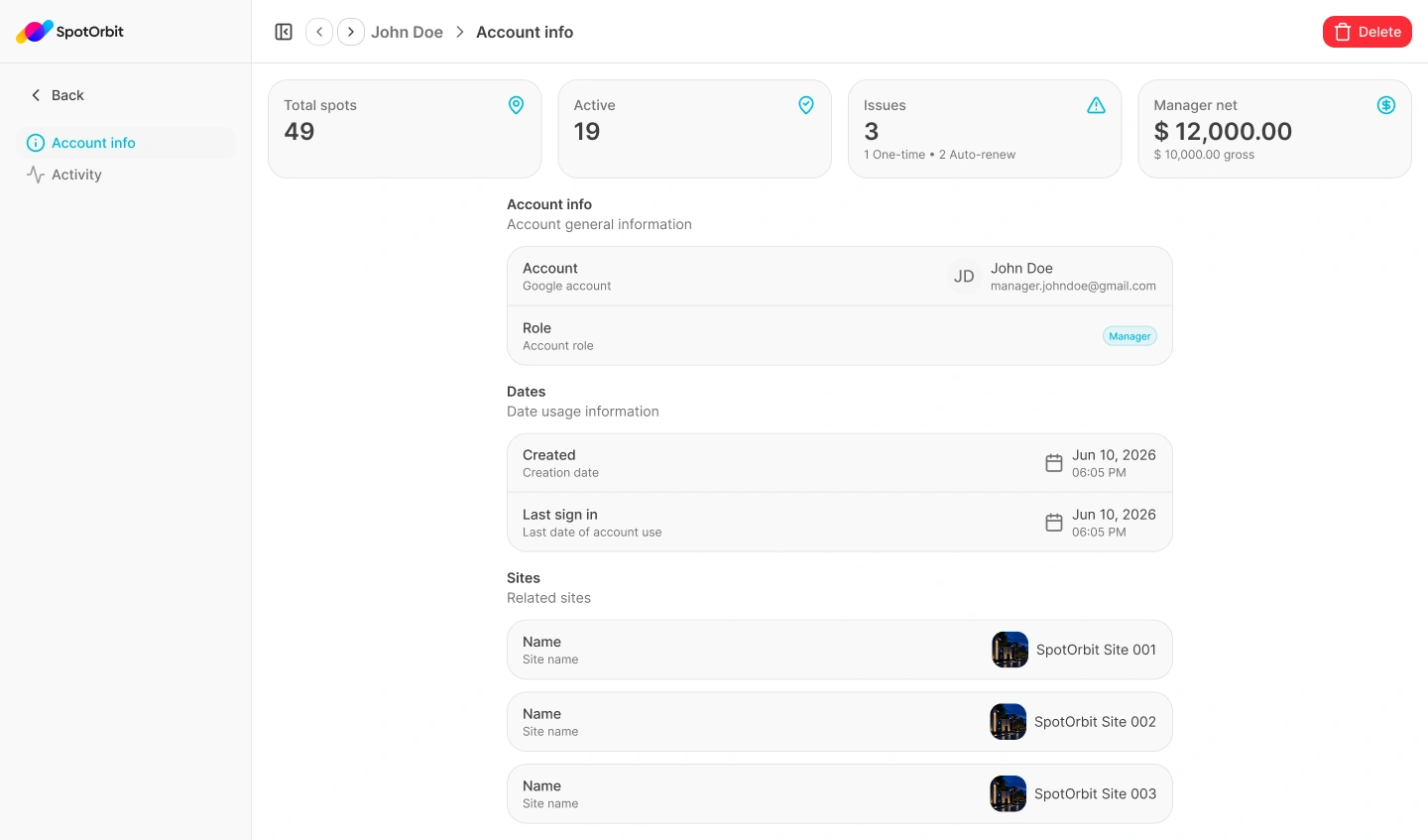
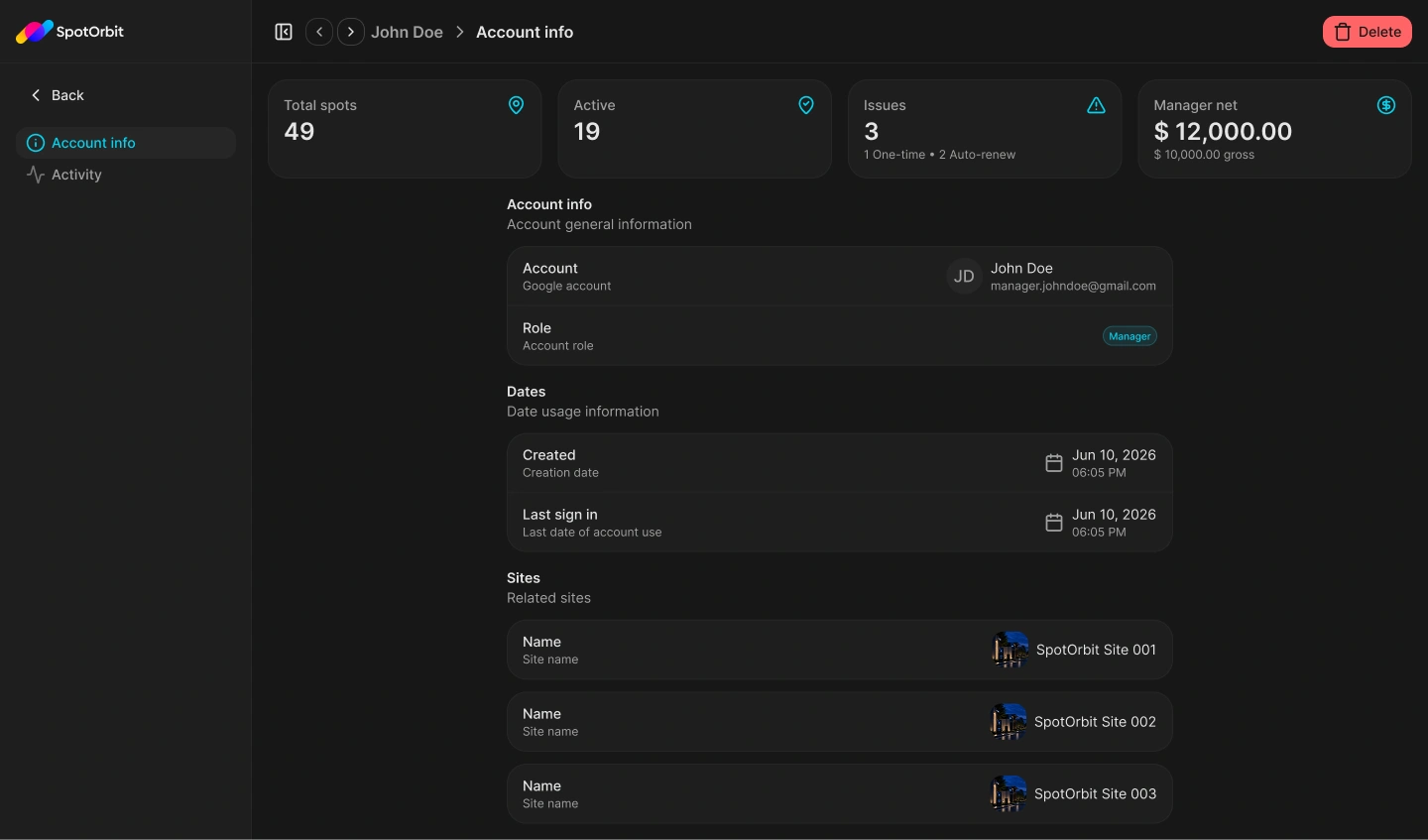
The left detail sidebar contains Account info and Activity. Select Back to return to the Accounts list.
Open account information
Find the account
Open Accounts, then search or filter until the intended account is visible.
Choose a level of detail
Open the row's action menu and select Details for the quick drawer or More for the full page. You can also select one row and use the matching action button above the table.
Confirm the selected account
Check the displayed name and email or user identifier before making a role or lifecycle change.
Use the quick details drawer
The Account details drawer keeps the list in place and displays:
- The account name and email or user identifier.
- The current primary role.
- Creation and last-sign-in dates.
- Every related site available in the loaded account data.
Select More to continue to the dedicated Account info page. The drawer also offers the current Disable or Enable action.
Read the full Account info page
The dedicated page displays:
- Account: display name and email or user identifier.
- Role: Admin, Manager, or Customer.
- Status: the current access lifecycle state and, when available, the date the account was disabled.
- Created: when the account was created.
- Last sign in: the last recorded use of the account.
- Sites: the sites connected through the account's memberships. A dash appears when none are available.
The header shows the selected account and the current section. Previous and next controls move through the loaded account list without returning to the table.
Change the primary role
The role editor offers Admin, Manager, and Customer.
Open the role editor
Select Edit role from the row actions or from the full account page header.
Choose the new role
Select Admin, Manager, or Customer. Choosing Manager also requires one active site from Manager site.
Review the effect
- Customer removes platform and site roles.
- Manager assigns the account to one selected active site.
- Admin grants the platform role and preserves existing site memberships.
Save the role
Select Save role. A success notification confirms the new role and the account information is refreshed.
The save action remains unavailable when nothing changed, when Manager has no selected site, or when you attempt to remove the platform administrator role from your own account.
Disable or enable an account
Disabling an account immediately blocks its API access and associated device credentials. It preserves the profile, roles, memberships, reservations, payments, and activity history. Enabling it restores API access and eligible device credentials; archived sites remain unavailable.
Open the lifecycle action
Select Disable for an active account or Enable for a disabled account from the list, details drawer, or full page.
Read the confirmation
Review the immediate access effect and the information that will be preserved or restored.
Confirm the change
Select Disable or Enable in the confirmation. A success notification reports the resulting state.
The signed-in platform administrator cannot disable their own account. Spot Orbit keeps it active and displays a warning instead.
Loading, missing, and error states
- The page displays loading content while account and list information are being retrieved.
- Account not found appears when the selected account is unavailable.
- If account data cannot load, select Retry to request both the list and selected account again.
Frequently asked questions (FAQ)
Details opens a quick drawer over the list. More opens the full Account info page with status, account-to-account navigation, Activity, and header actions.
A Manager must have one active site selected. Save also remains disabled when the role and site have not changed.
No. The role editor prevents the signed-in platform administrator from selecting Manager or Customer for their own account.
No. Disable blocks access and device credentials while preserving the account profile and recorded business history.
Enabling restores eligible account credentials and existing memberships, but it does not restore archived sites.
Related content
- Accounts — Find an account and open its available actions.
- Account activity — Review device activity associated with the selected account.
- Sites — Review the sites referenced by account memberships.
- Teams — Manage membership for the currently selected site.