Dashboard
The Dashboard is the default destination after a direct sign-in. It provides a read-only operational summary of the active site.
Overview
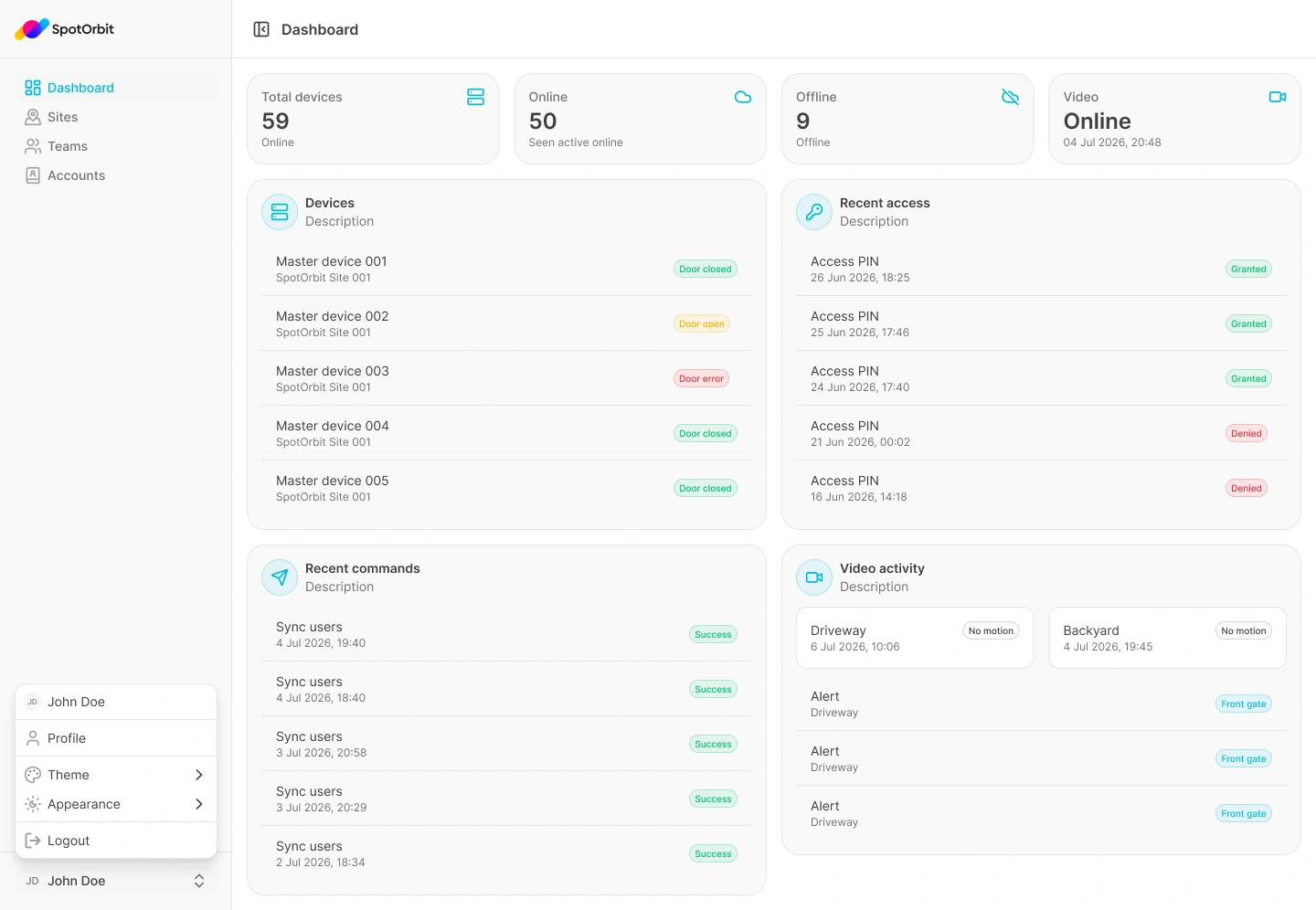
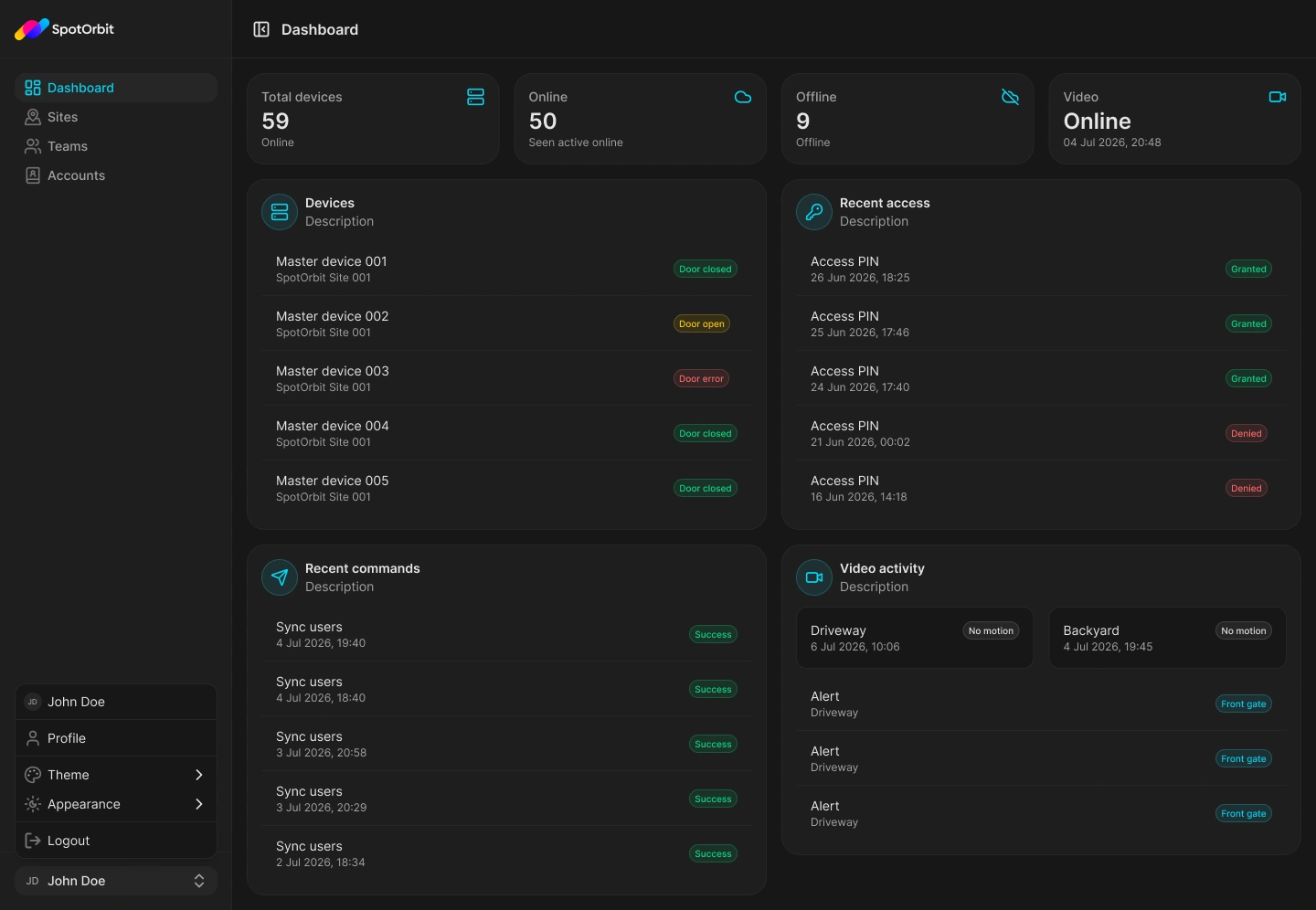
The page header identifies the active site. Below it, four status cards summarize device and video availability, followed by sections for devices, recent access, recent commands, and video activity. The Dashboard does not provide search, filters, column controls, exports, or create, edit, and delete actions.
Review the site overview
Confirm the active site
Read the site name in the page header. If no site is available, the page explains whether your account lacks site access or no active site is currently available.
Check the status cards
Compare the total, online, and offline device counts, then review the current video availability and its latest update time.
Review recent activity
Scan the device, access, command, and video sections for statuses or events that may require attention.
Open the appropriate feature
Use the sidebar when you need a complete list, detailed information, filters, or management actions. The Dashboard itself is a summary.
Status cards
The four cards at the top summarize:
- Total devices: the number of devices included in the active site's overview.
- Online: devices seen within the active online window.
- Offline: devices not currently reported as online.
- Video: the current video availability and the time of its latest update, when available.
The screenshot contains example values. Use the values displayed in your own session when evaluating a site.
Devices
The Devices section identifies each device by its display name and device ID. Its badge indicates whether it is online or offline, while the secondary text reports the available door state.
Use this section to notice a disconnected device or a door state that may need attention. Open the appropriate device area from the sidebar when you need details or actions.
Recent access
The Recent access section shows the latest access attempts. Each entry contains its available detail or result, its date and time, and a status such as granted or denied.
Recent commands
The Recent commands section lists commands sent to site devices. Each row shows the command type, creation time, and current status so you can recognize whether a recent action completed or still requires attention.
Video activity
The Video activity section can contain:
- Camera cards with the camera name, current state, motion status, and last update.
- Recent video events with their title, location, and current status.
Loading, empty, and error states
- Loading placeholders appear while the first site overview is being retrieved.
- Each section displays its own empty message when it has no records yet.
- If no site is available, the page distinguishes between an account with no site access and an account with no active sites.
- If the overview cannot be loaded, select Retry to request it again.
Frequently asked questions (FAQ)
Your account may not have access to a site, or the available sites may not be active. Read the empty-state message for the condition that applies.
No. The current Dashboard is a summary without search or filter controls. Open the corresponding feature from the sidebar for more detailed tools.
Select Retry in the error message. If the problem continues, report the affected site and the message shown on the page.
No. The Dashboard displays device status but does not expose device management actions. Open the appropriate device area from the sidebar.
Related content
- Getting started — Learn how the Admin workspace is organized.
- Sign in — Access the Dashboard with an existing account.
- Sites — Continue to the available site-management content.
- Sign out — End the current session after reviewing site status.