Accounts
Use Accounts to review the people registered on the Spot Orbit platform and open the actions available for an individual account.
Overview
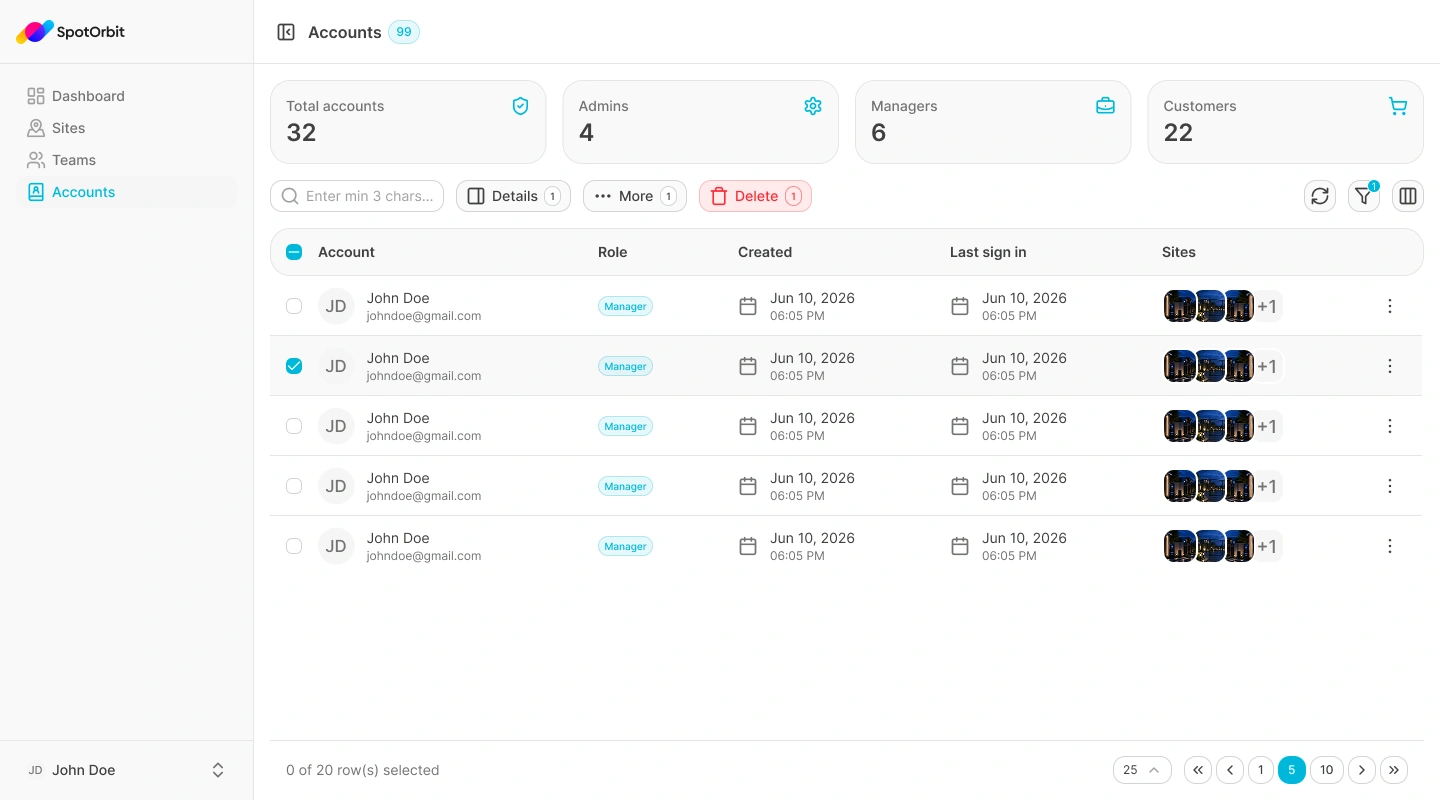
The page combines role summary cards with a searchable, filterable table. Platform administrators can review an account's identity, primary role, creation date, last sign-in, and related sites. They can also open a quick details drawer, continue to the full account page, change a role, or disable and enable access.
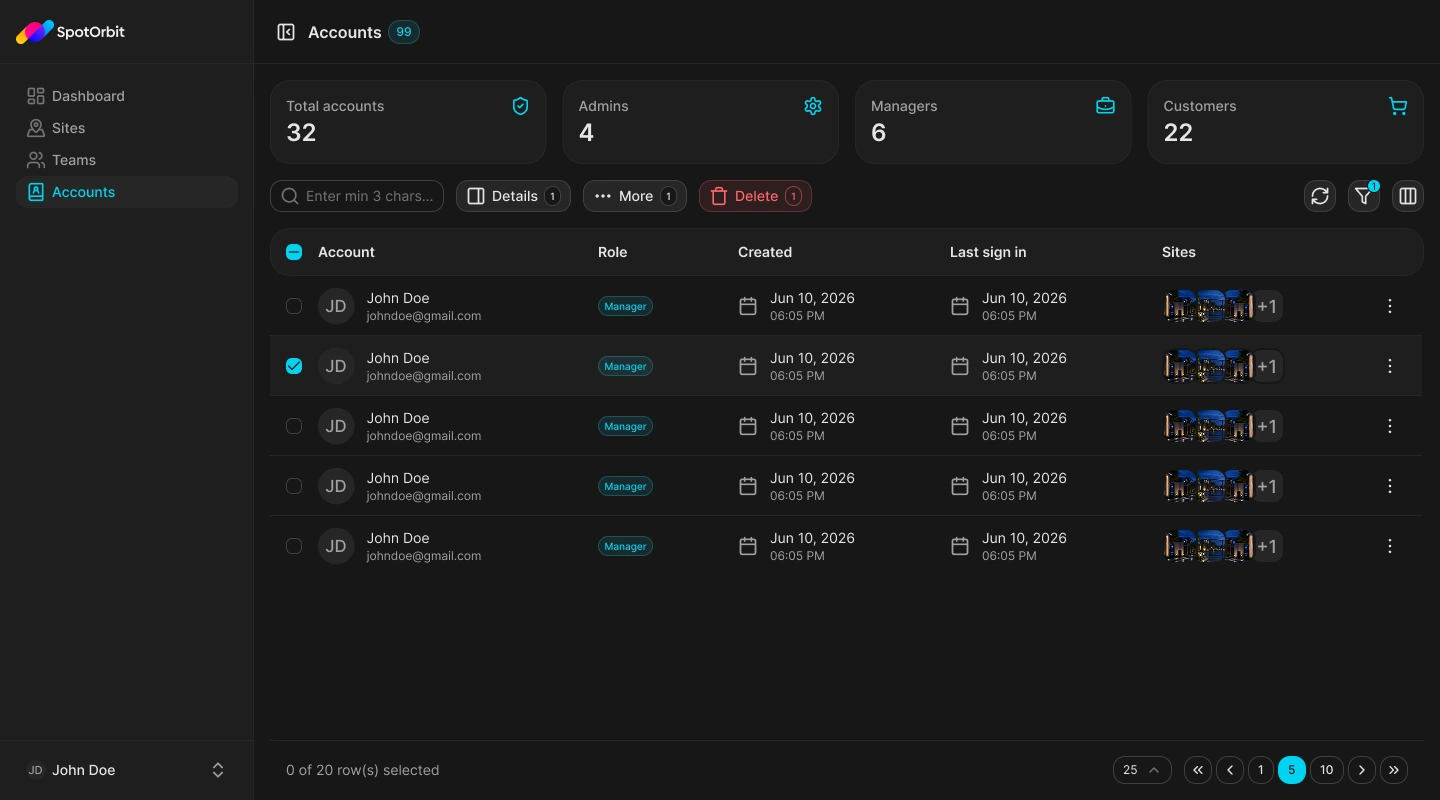
The current page does not create accounts and does not provide an export action.
Understand the summary cards
The cards above the table show counts for:
- Total accounts: all accounts currently loaded on the page.
- Admins: accounts represented by the platform administrator role.
- Managers: accounts represented by the manager role.
- Customers: accounts whose primary role is customer.
The number beside the Accounts page title also reports the number of loaded accounts. Filters change the table results but do not recalculate these summary cards.
Find an account
Open Accounts
Select Accounts from the Admin sidebar. The page initially loads account summaries and the table.
Enter a search term
Type at least three characters in the search field. The current loaded accounts are matched against their name, email, user identifier, phone, primary role, and related site names.
Refine the results if needed
Open the filter control to narrow the table by account status or by an account date range.
Review the matching rows
Use the table, page-size selector, and pagination controls to find the account you need.
Clearing the search restores the unsearched list. Entering one or two characters does not apply a search.
Filter by status or date
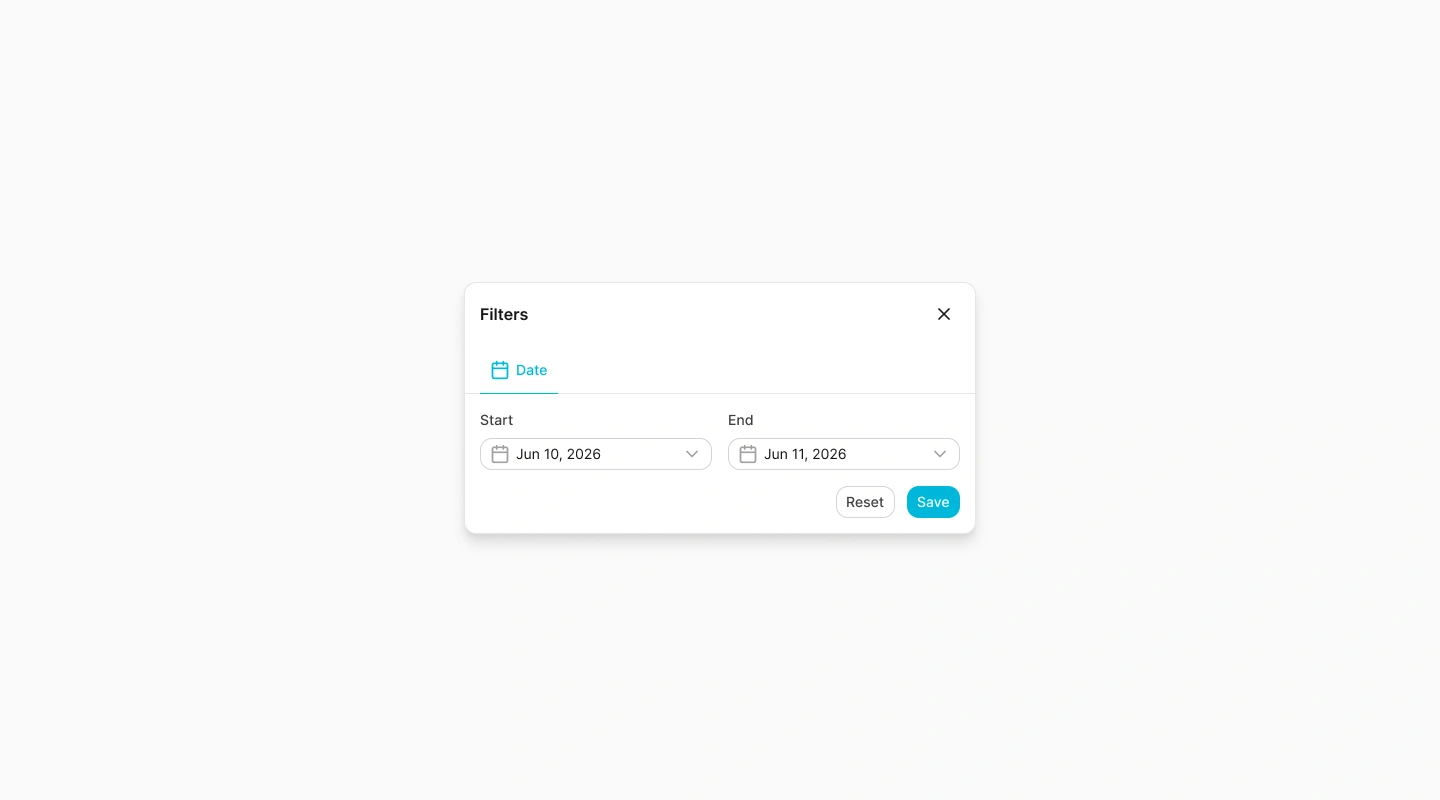
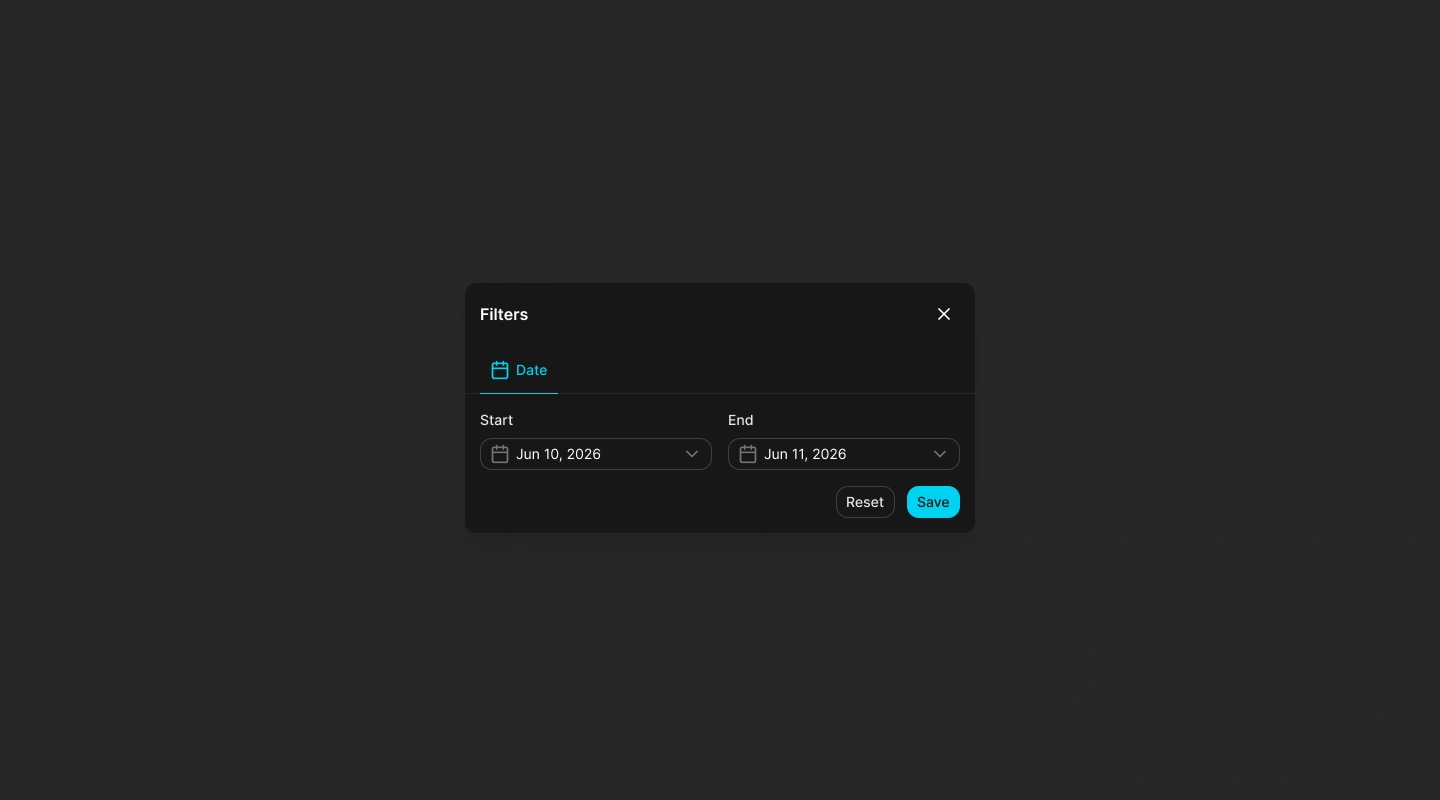
The filter dialog can limit the list by lifecycle status or date. A date matches when either the account creation date or its last sign-in falls within the selected range.
Open the filters
Select the filter button above the table. A badge indicates how many filters are currently applied.
Choose the criteria
Select an account status, a start date, an end date, or a combination of status and dates.
Apply or clear the filters
Select Save to apply the draft criteria. Select Reset to clear the status and date range and return to the full loaded list.
Applying a search or filter returns the table to its first page and clears the current row selection.
Read and customize the table
Each row can display:
- Account: display name with the email or user identifier underneath.
- Role: the account's primary platform role.
- Created: when the account was created.
- Last sign in: the most recent recorded sign-in.
- Sites: avatars representing related site memberships.
- Actions: the menu for the selected account.
Use the columns button to hide, show, or reorder the manageable columns. The selection and actions columns remain fixed. Column changes on this page apply to the current table view.
The footer reports the selected-row count and provides page sizes of 10, 25, 50, or 100 together with page navigation. The default page size is 25.
Open account actions
Open the three-dot menu on a row, or select exactly one row to display its action buttons:
- Details: opens a quick summary drawer without leaving the list.
- Edit role: opens the role editor.
- More: opens the full Account info page.
- Disable or Enable: opens the confirmation for the account's current lifecycle state.
Selecting multiple rows does not expose bulk account-management actions. These actions operate on one account at a time.
Loading, empty, and error states
- Loading placeholders appear while the initial account data is being retrieved.
- No accounts found appears when the loaded data, search, and filters produce no rows.
- If the account list cannot load, the page displays the error and a Retry action.
- Use the refresh button to request the account list again without leaving the page.
Frequently asked questions (FAQ)
Enter at least three characters. Shorter text remains in the field but is not applied as a search.
An account matches when its creation date or last sign-in falls within the selected range.
No. The current Accounts page does not expose an export action.
No. Details, role, full-page, and lifecycle actions appear for a single selected account.
Accounts is a platform administration area. If it is unavailable, your assigned role or capabilities do not provide access to it.
Related content
- Account info — Review identity, dates, status, sites, roles, and access controls.
- Account activity — Inspect the selected account's recorded device activity.
- Teams — Manage membership and invitations for a selected site.
- Getting started — Review the Admin workspace and its role-based navigation.