Sites
Use Sites to find and manage the locations administered through Spot Orbit.
Overview
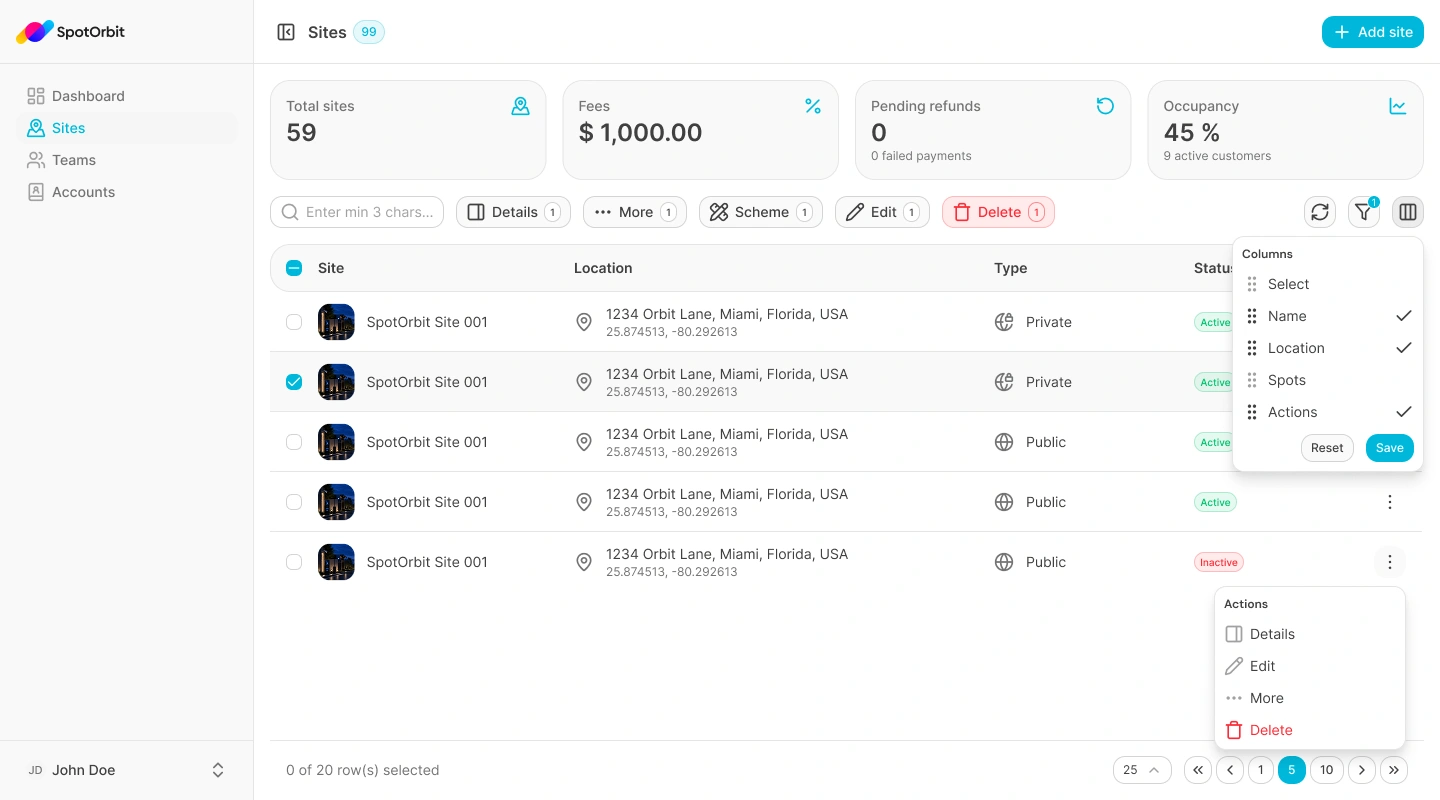
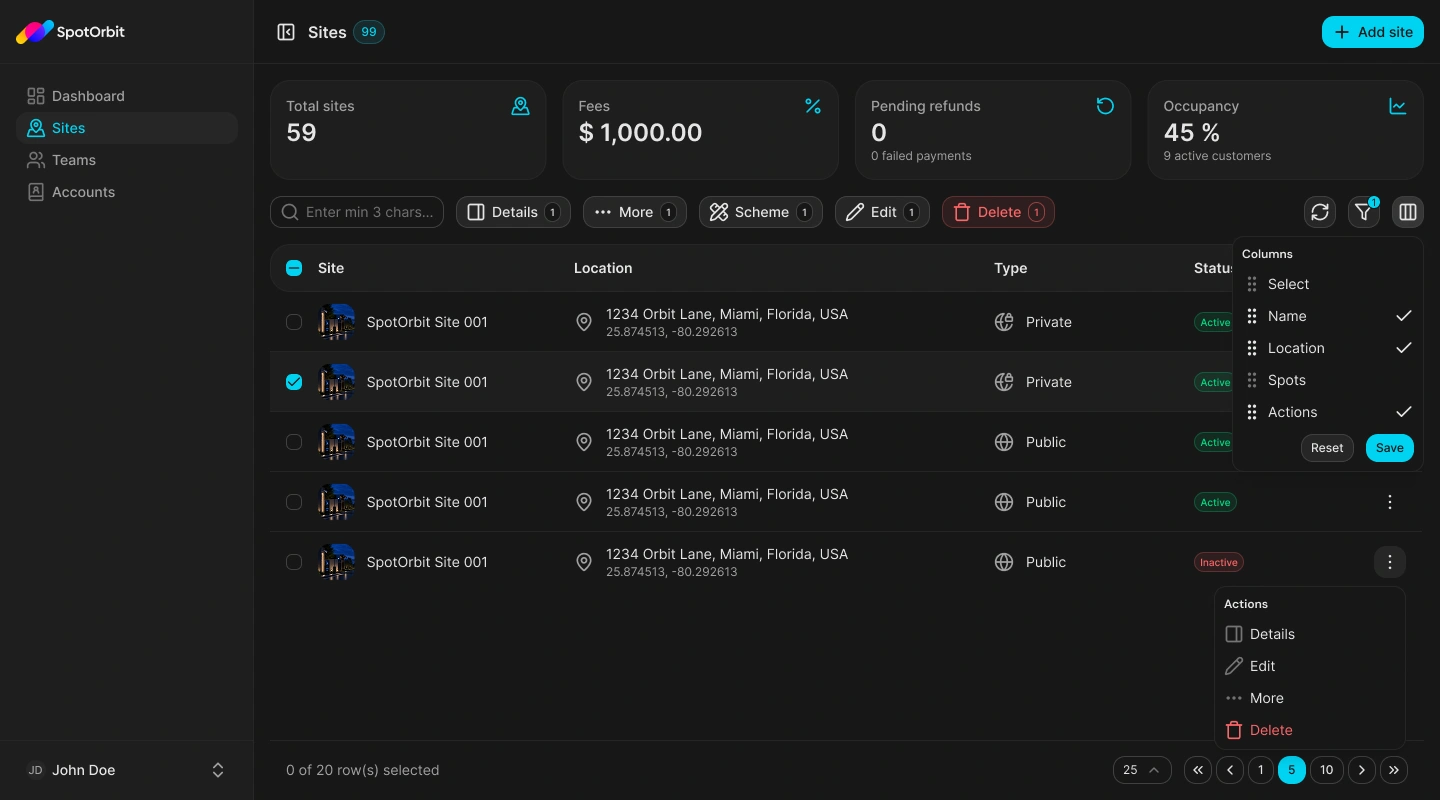
The page provides summary cards and a table of loaded sites. You can search by name, code, or address; filter by visibility and lifecycle status; customize the columns; and open details, editing, full site information, or archive and restore actions.
The current page has no export action.
Find and filter a site
Open Sites
Select Sites from the Admin sidebar.
Search the loaded catalog
Enter at least three characters to match a site's name, code, or address.
Apply filters
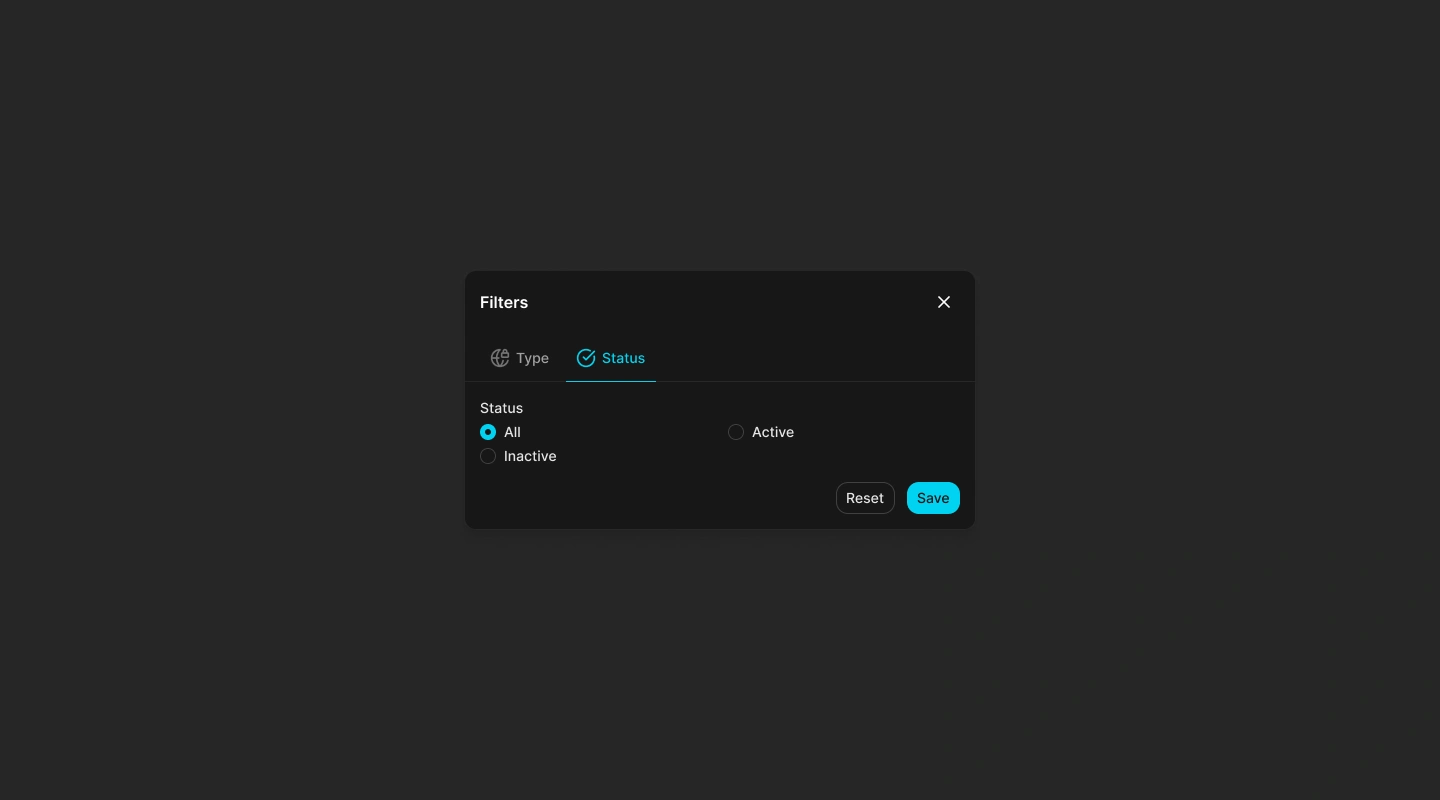
Open Filters and choose a type—All, Public, or Private—and a status—All, Active, or Archived. Select Save to apply them or Reset to clear both.
Review the results
Use pagination and the page-size selector. The default size is 10; available sizes are 10, 25, 50, and 100.
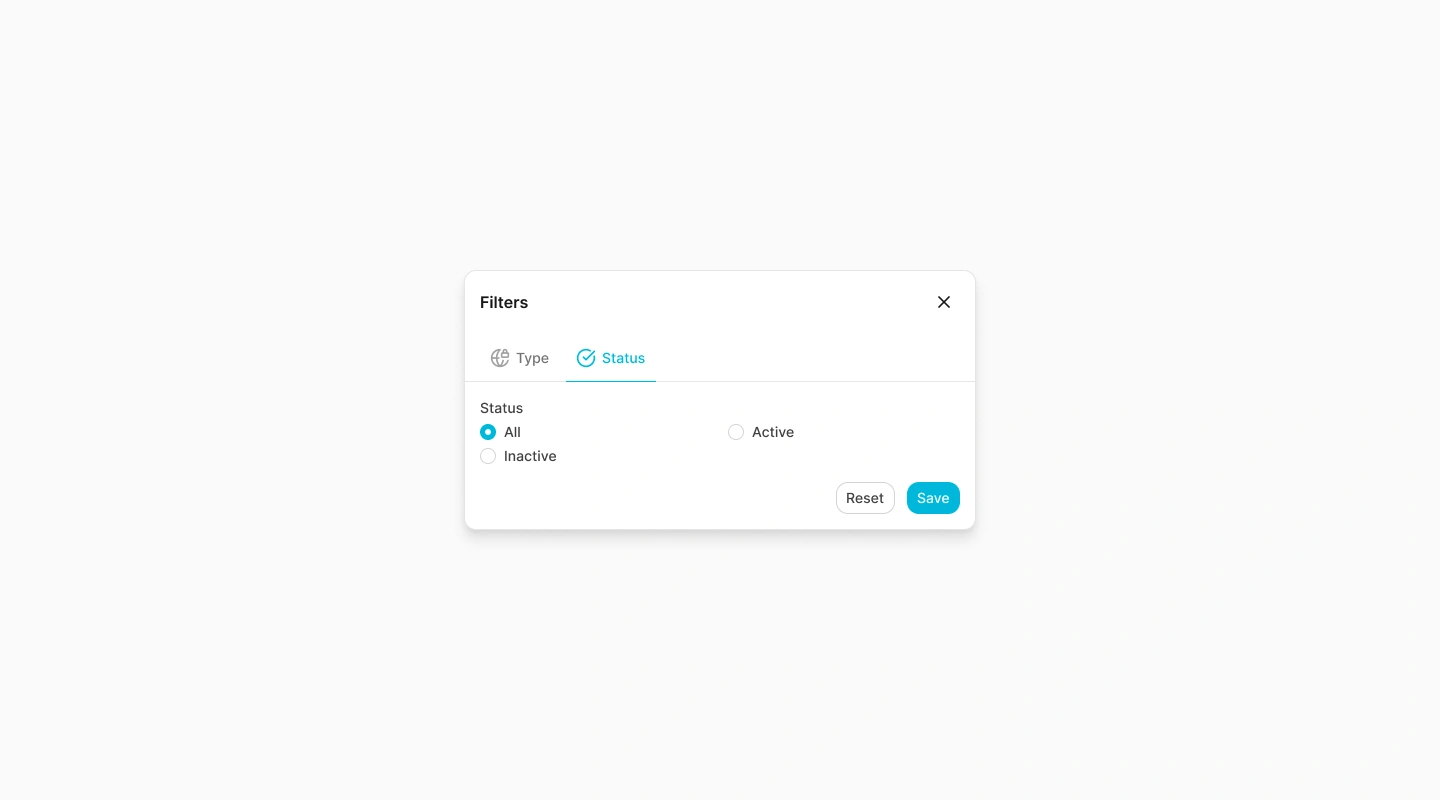
Searching or changing filters returns the table to its first page and clears selected rows.
Read the table and actions
Each row shows the site image and name, address and coordinates, Public or Private type, and Active or Archived status. Use the columns control to hide, show, or reorder manageable columns.
The row menu offers:
- Details: opens a quick drawer with the yard scheme and general information.
- Edit: opens the site form.
- More: opens the full Site info page and its site-level navigation.
- Archive or Restore: opens the applicable lifecycle confirmation.
These actions require one selected row. The current list does not perform lifecycle changes in bulk.
If loading fails, select Retry. No sites available appears when no site is configured, while No sites found appears when the current search and filters have no matches.
Frequently asked questions (FAQ)
Enter at least three characters. One or two characters are not applied as a search.
No. The current Sites page does not expose an export action.
No. Only Total sites is derived from the loaded list in the current implementation.
Details opens a quick drawer. More opens the full Site info workspace with Zones, Reservations, Payments, Devices, and Videos navigation.
Related content
- Create and edit sites — Configure identity, visibility, image, and invitations.
- Site info — Review the full site, yard scheme, metrics, and actions.
- Zones and spots — Manage the site's reservable layout and inventory.
- Teams — Manage access to the currently selected site.