Administrator
The administrator workspace brings platform supervision tools together in one web application. Use it to move between the Dashboard, Sites, Teams, and Accounts available to an administrator.
Overview
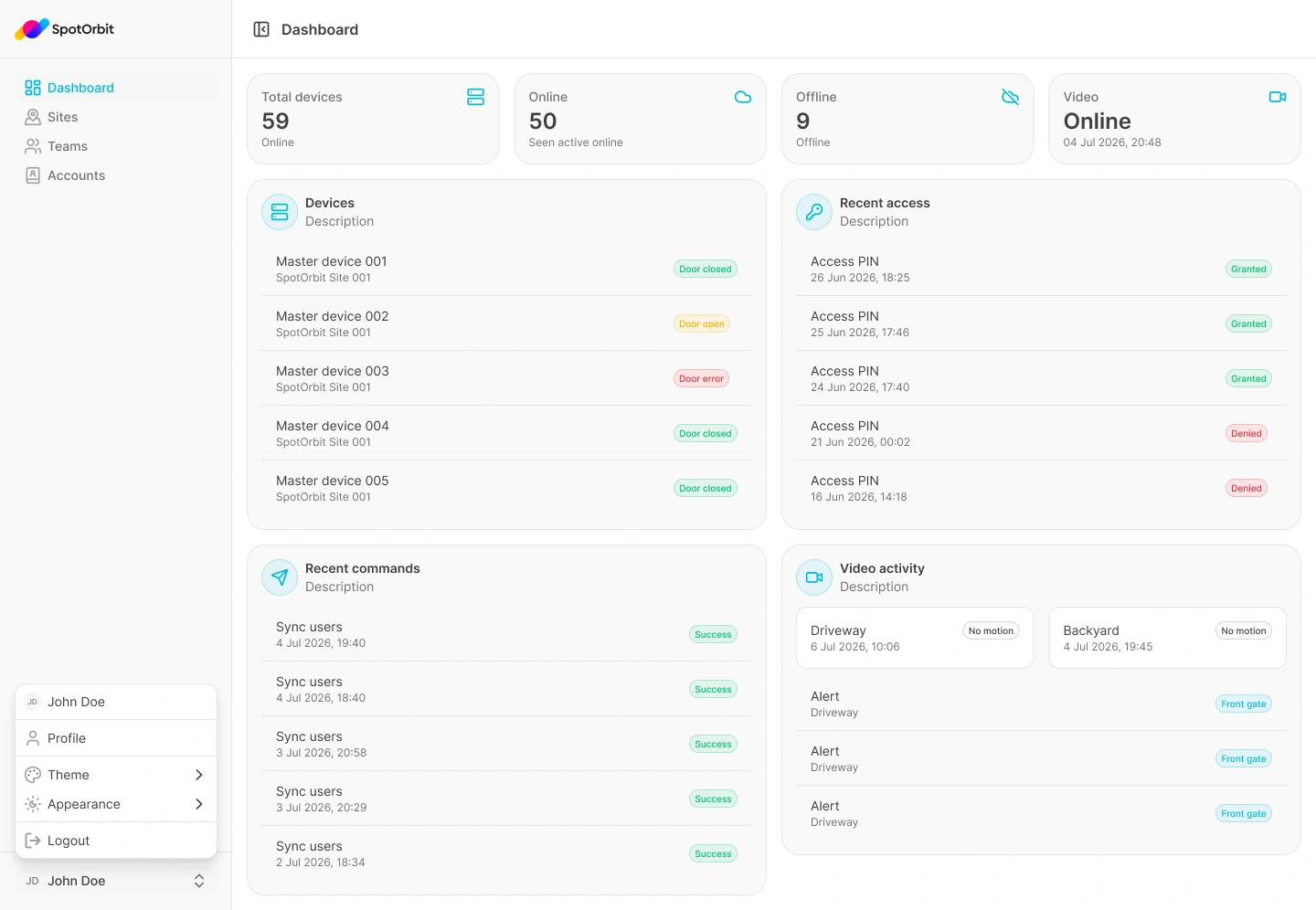
After signing in, Spot Orbit Admin opens a protected workspace with a sidebar, page header, main content area, and user menu. The exact pages you can open depend on your role and the sites assigned to your account.
Before you begin
You need an existing Spot Orbit account with access to the Admin application. Account creation and password recovery are not available from the login screen, so contact your Spot Orbit administrator if you need access assistance.
Complete your first visit
Sign in
Sign in with Google or with your email and password. A successful sign-in opens the protected page you originally requested or the Dashboard.
Confirm the active site
Review the site name in the page header before interpreting totals, devices, or recent activity.
Review the Dashboard
Use the Dashboard to check device availability, access activity, commands, and video status for the active site.
Open another feature
Use the application sidebar to open the tools available to your role. The current page appears in the main content area.
End your session
Open the user menu and sign out when you finish, especially on a shared computer.
Understand the application layout
- Sidebar: opens the main areas available to your role and can be collapsed from the page header.
- Page header: identifies the current page or active site.
- Main area: displays the selected feature, its current information, and the actions available to you.
- User menu: appears at the bottom of the sidebar and provides access to your profile, light or dark appearance, and Log out.
Frequently asked questions (FAQ)
The sidebar reflects your assigned role, capabilities, and site access. Ask your Spot Orbit administrator whether your access is correct.
Check the site name in the page header. Dashboard totals and operational activity belong to that active site.
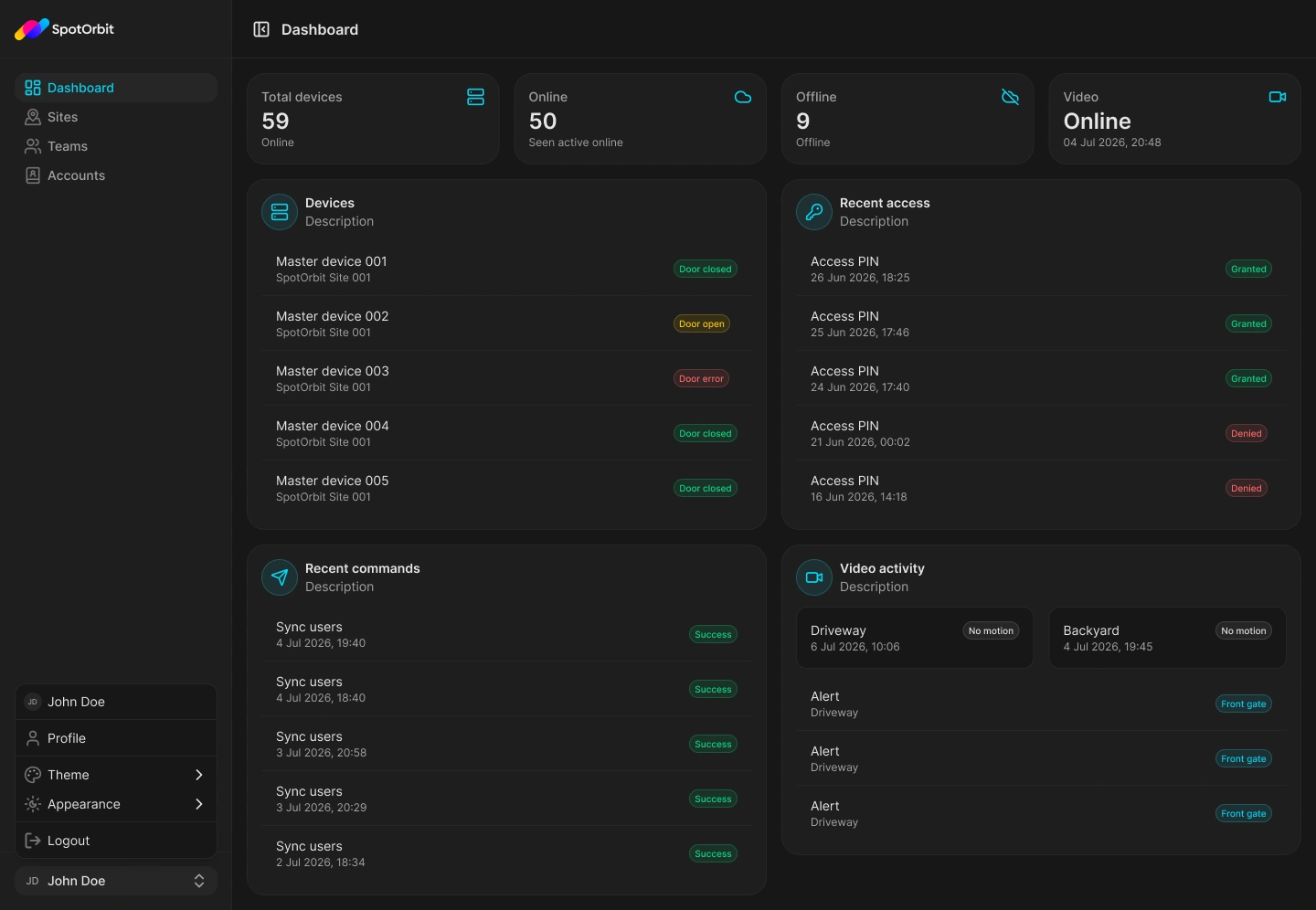
Yes. Open the user menu at the bottom of the sidebar, select Appearance, and choose Light or Dark.
Use Log out from the user menu and confirm the action. Closing the browser tab alone does not explicitly end the current session.