Member access
Use the member details and revoke actions to confirm who has access to the selected site and remove that access when necessary.
Overview
Details opens a drawer over the Teams list. It shows the member's identity, role, membership creation date, and last sign-in. Its footer provides Revoke, which opens a separate confirmation before Spot Orbit removes the membership. The same revoke confirmation is available from a row menu or selected-row action.
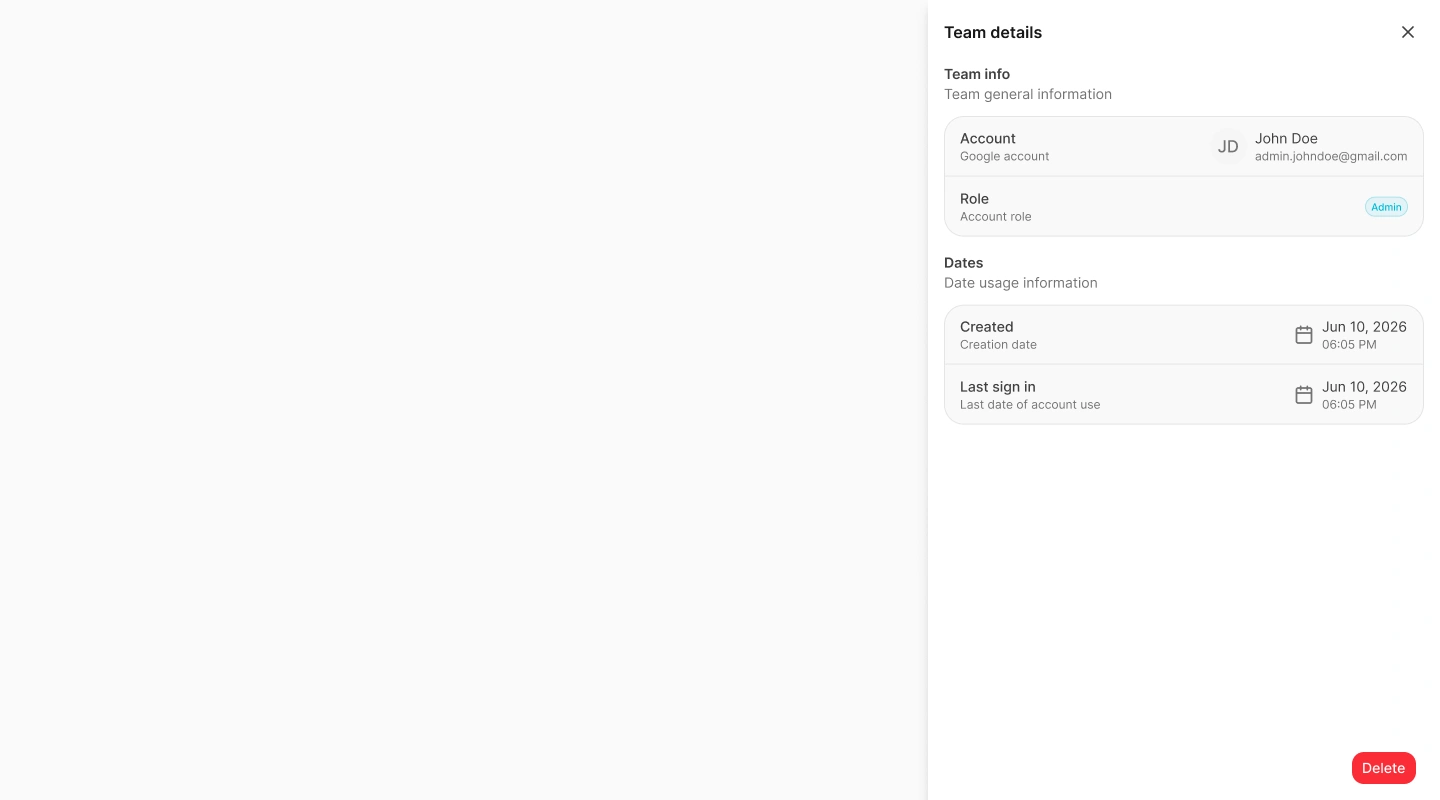
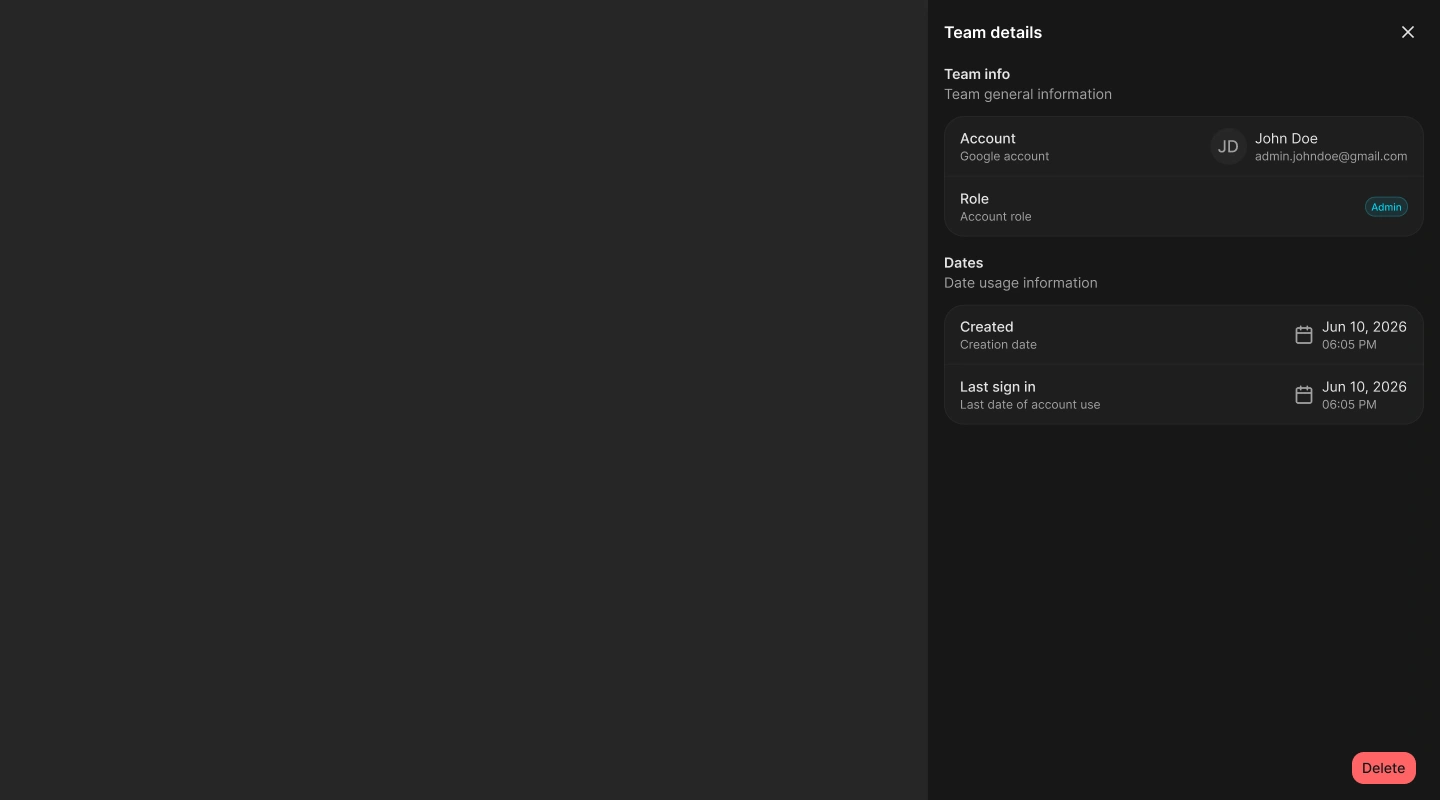
Revocation affects only membership in the site currently selected. It does not delete the person's Spot Orbit account.
Review member details
Find the member
Open Teams for the intended site, then search or filter until the membership is visible.
Open Details
Open the row's three-dot menu and select Details. You can also select exactly one row and use the Details button above the table.
Verify the identity and role
Under Team info, confirm the member's display name, email or user identifier, and current site role.
Review the dates
Under Dates, review when the membership was created and the last recorded sign-in. A missing last-sign-in value means no date is available in the loaded account data.
The details drawer is read-only. The current Teams feature does not edit the member's role.
Revoke one membership
You can begin from the member's row menu, from a single selected row, or from the Revoke button in the details drawer.
Start the revoke action
Choose Revoke for the intended member.
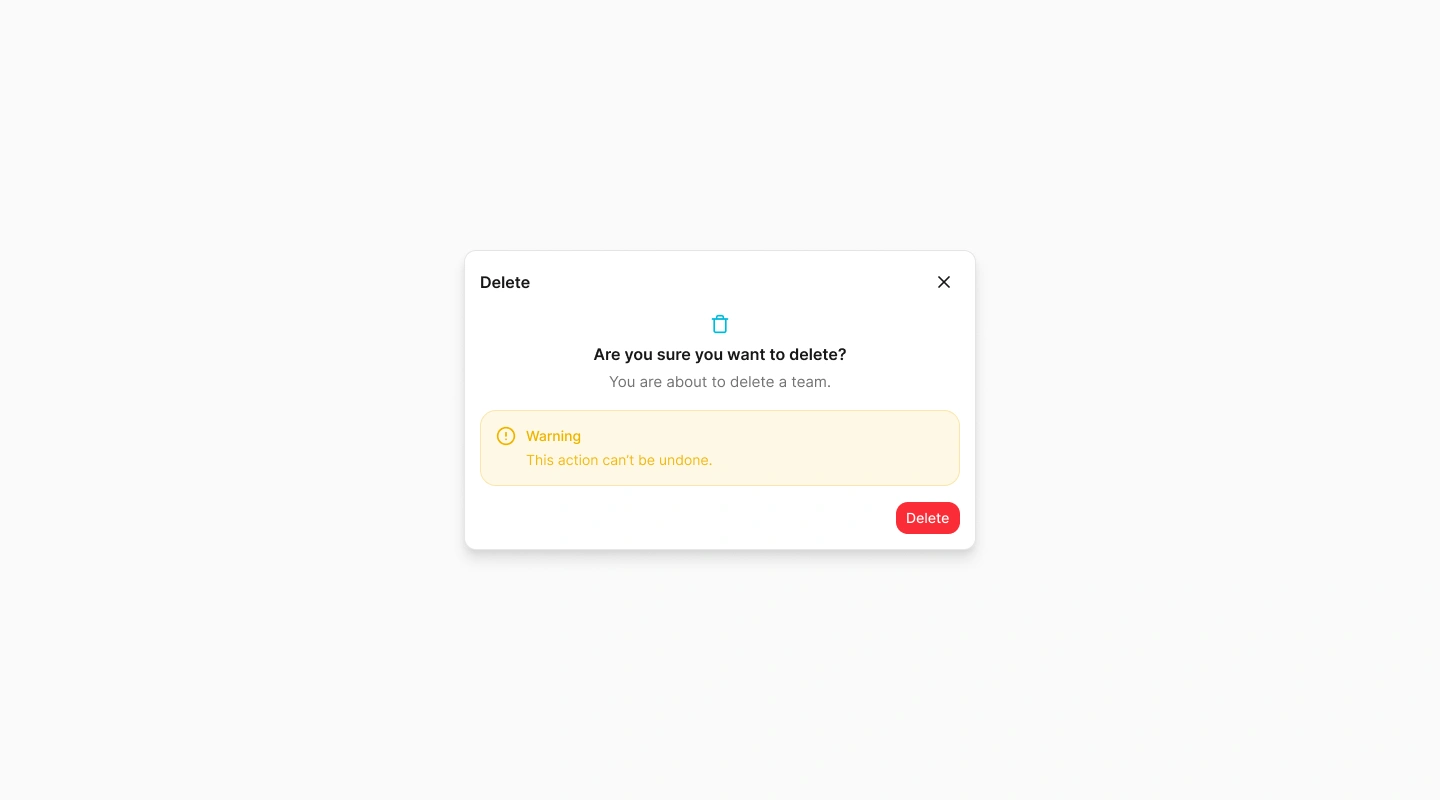
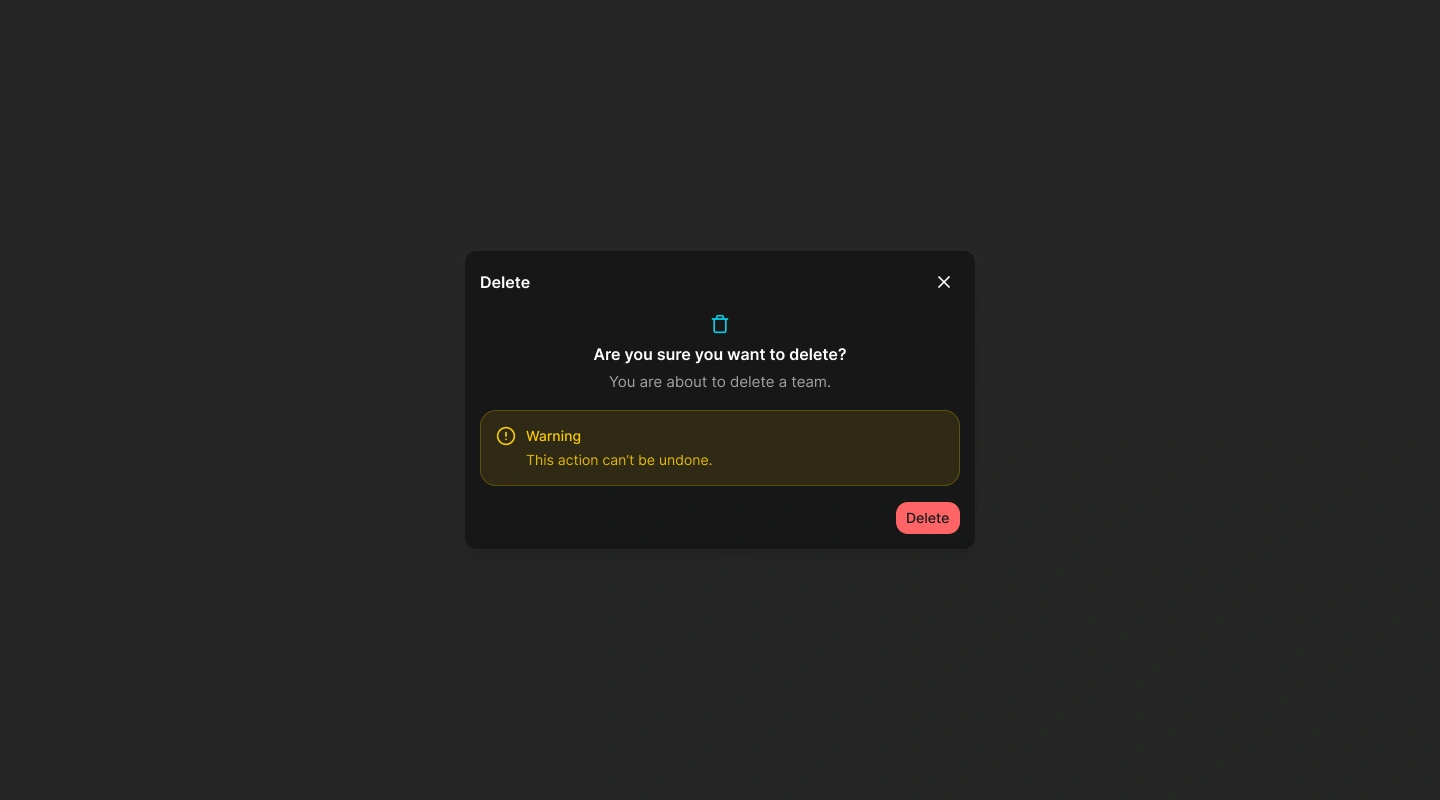
Read the confirmation
Confirm the number of accounts and the site named in the dialog.
Confirm Revoke
Select Revoke in the dialog. Spot Orbit refreshes the membership list and reports that the selected account no longer has access to the site.
Revoke several memberships
Select the checkboxes for every membership you intend to remove. The action area displays Revoke with the selected count. Review the selection, open the confirmation, and verify that the dialog reports the expected number of accounts before continuing.
The revocations are requested together. If the operation fails, Spot Orbit reports that it could not revoke team access and the memberships should be checked before retrying.
Frequently asked questions (FAQ)
No. It removes access to the selected site while preserving the account and access to any other sites.
Yes. Select multiple rows and use the Revoke action that displays the selected count.
No. The current details drawer is read-only and the Teams feature does not expose a role editor.
Confirm the selected site, member identity, selected-row count, and the site name shown in the confirmation.
Related content
- Teams — Search, filter, and select memberships.
- Invitations — Invite a person or revoke an unused invitation link.
- Account info — Review platform roles and disable or enable an entire account.