Invitations
Use Add team to create site invitations and manage invitation links that have not yet been accepted.
Overview
The Add team drawer contains an email field and a list of pending or expired links for the selected site. You can create a link, copy it, renew it by resending, or revoke it. Selecting several entries exposes bulk Resend and Revoke actions.
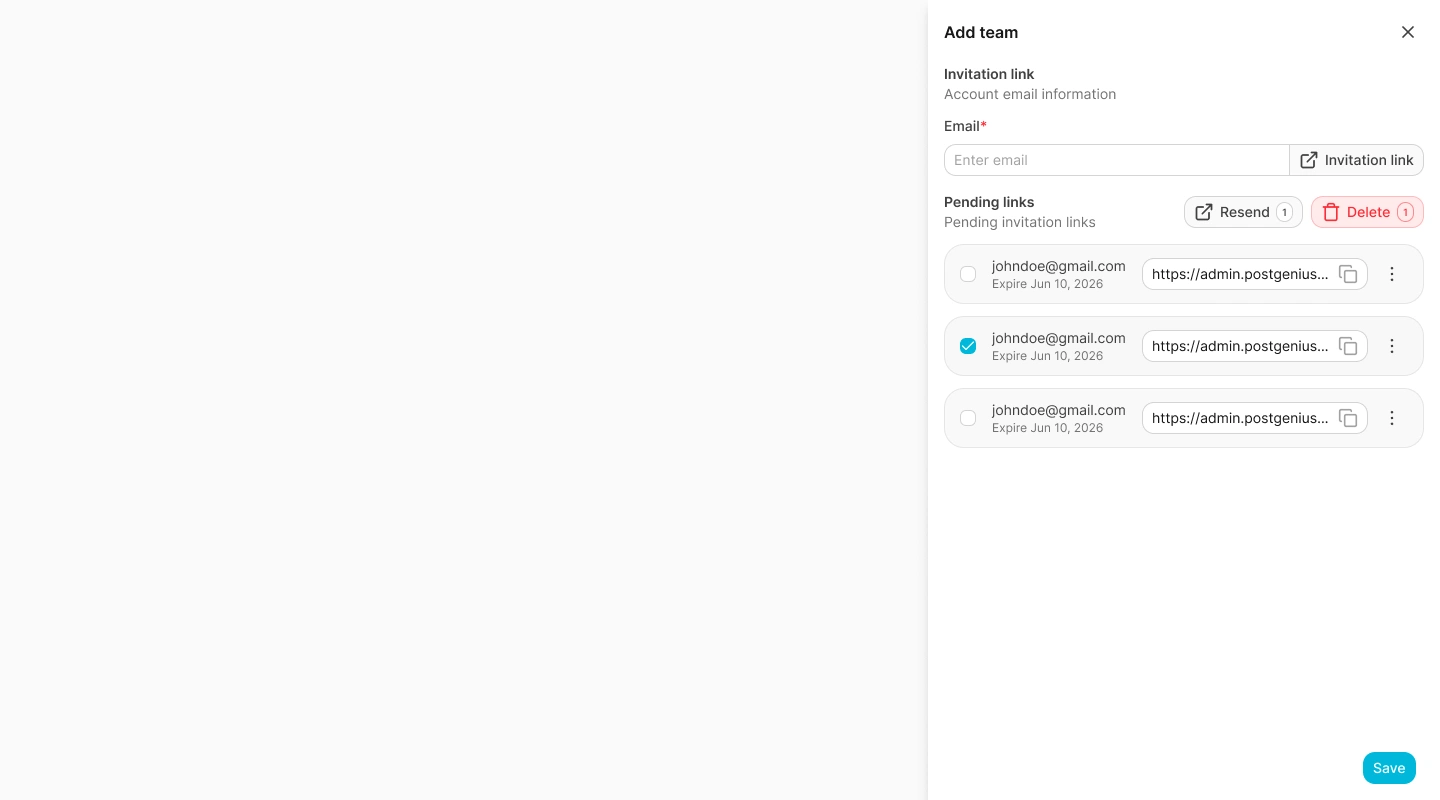
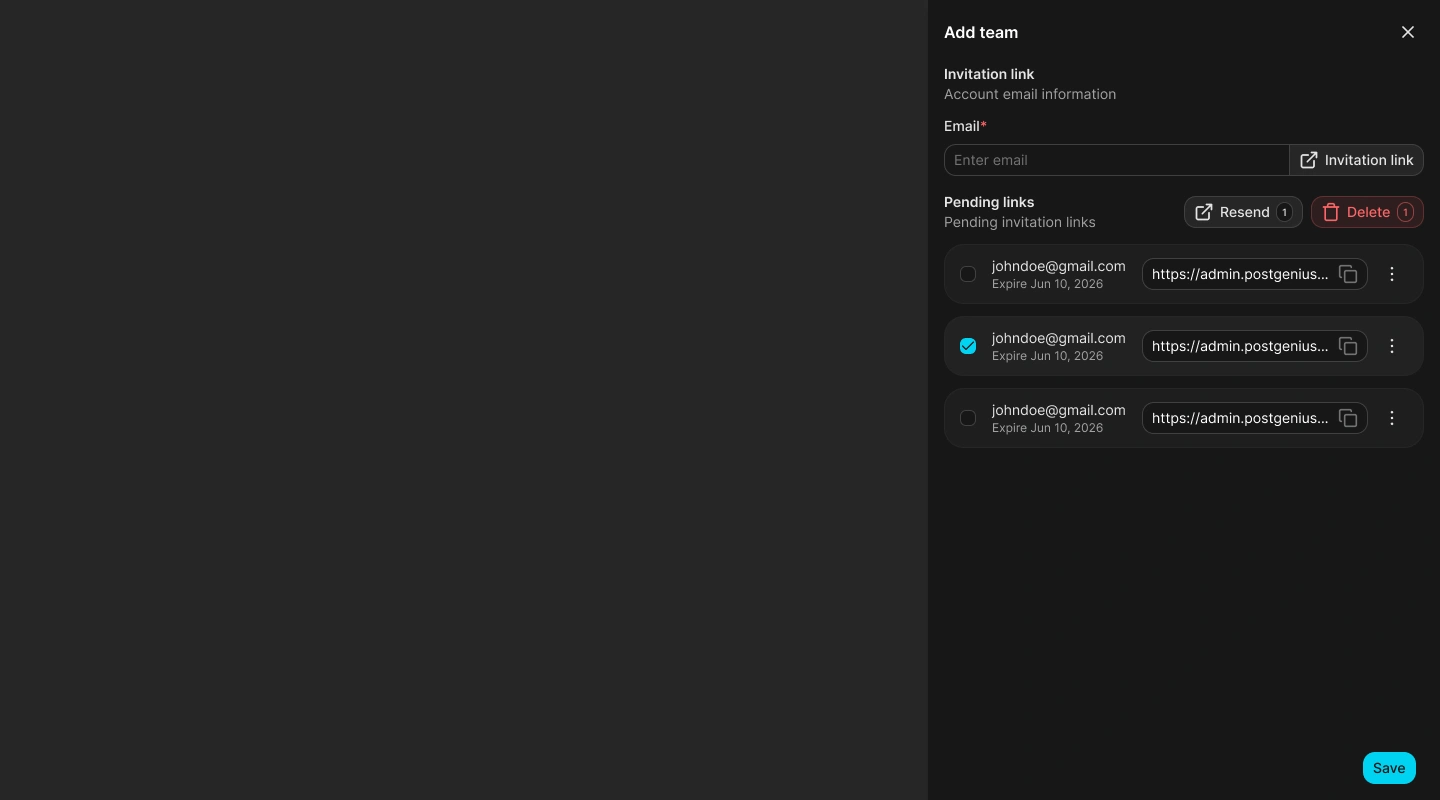
The drawer assigns the invitation role automatically. A platform administrator creates an administrator invitation; other supported administrator contexts create a manager invitation. There is no role selector in the drawer.
Create an invitation
Confirm the selected site
Check the current site before opening Teams. The invitation will belong to that site.
Open Add team
Select Add team in the Teams header.
Enter the email address
Enter a complete, valid email address. The invitation action remains unavailable until the email format is valid and a site is selected.
Create the invitation link
Select Invitation link or press Enter in the email field. Spot Orbit creates the invitation, attempts to send it by email, refreshes the pending list, and clears the field.
Copy or review the link
Use Copy link when the URL is available. Select Save when you are finished to close the drawer.
Understand pending links
The list includes invitations whose status is pending or expired. Each entry shows the recipient's email and either its expiration date or that it has expired. Email delivery failed appears when the notification could not be sent.
The main button reads Copy link when a URL is available. If no URL is stored, it reads Resend for link and renews the invitation before making the new link available.
Resend an invitation
Resending renews the invitation and can produce a new link.
Find the invitation
Open Add team and locate the email under Pending links.
Choose Resend
Open the entry's three-dot menu and select Resend. To process several invitations, select their checkboxes and use the bulk Resend action.
Check the result
A success message confirms that a new link was sent. If delivery fails, Spot Orbit reports the failure while keeping a returned link available for copying.
For a bulk action, invitations that succeed are cleared from the selection. Entries that fail remain selected so you can retry them.
Revoke an invitation
Open an invitation's action menu and select Revoke, or select several invitations and use the bulk Revoke action. A revoked link disappears from the pending list and can no longer be used.
If the invitation service cannot load, the drawer shows an error and a Retry action. When no pending or expired invitations exist, it shows No pending invitations for this site.
Frequently asked questions (FAQ)
No. The current drawer assigns the role from the signed-in administrator context and does not expose a role selector.
Confirm that a site is selected and enter a complete email address in a valid format.
The invitation may still be created. When the service returns a URL, you can copy it even though the email was not delivered.
The drawer intentionally includes pending and expired links so you can resend or revoke them.
Related content
- Teams — Find memberships for the selected site.
- Member access — Review an existing member and revoke access.
- Accounts — Review the person's platform account when it already exists.