Videos
Use Videos to monitor the cameras assigned to the selected site.
Overview
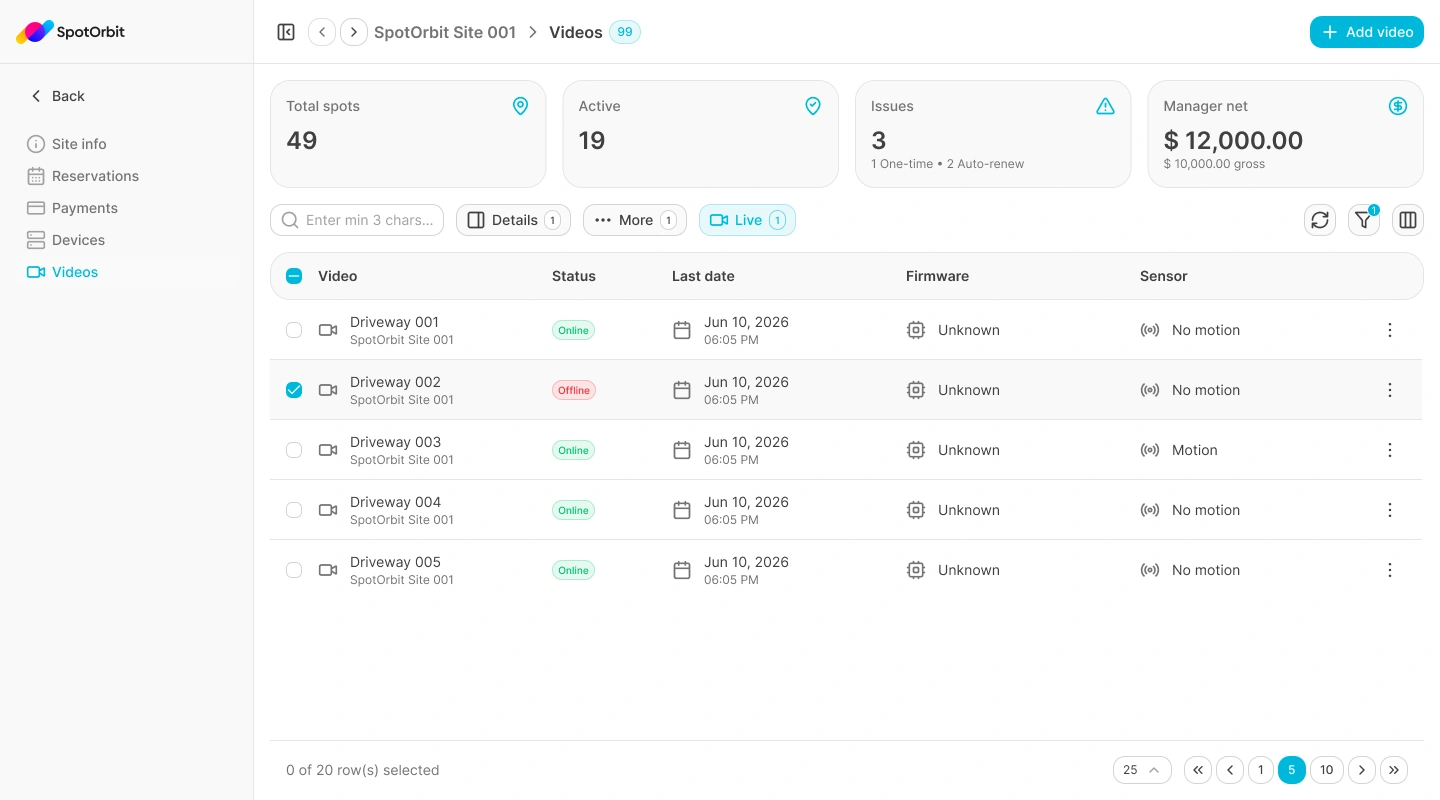
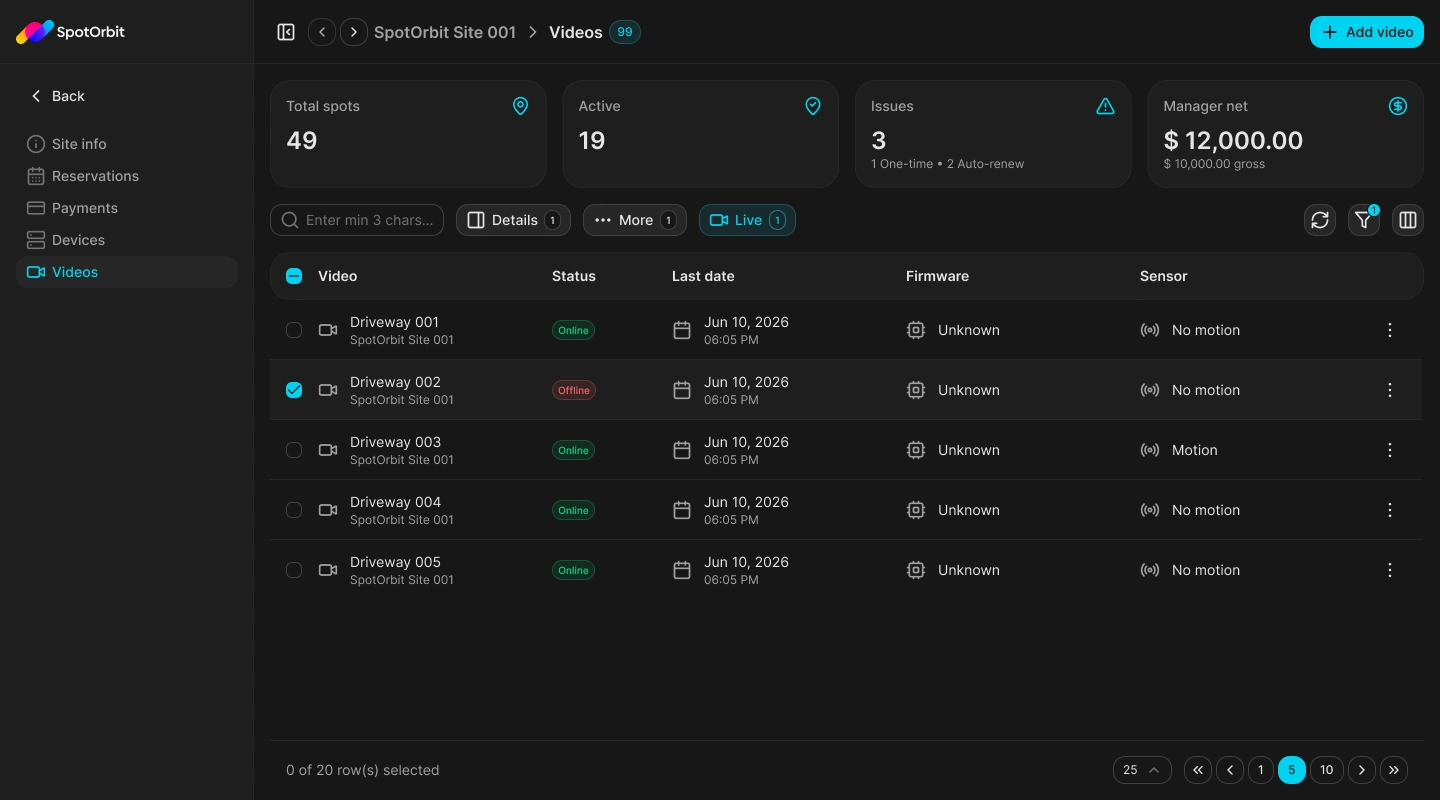
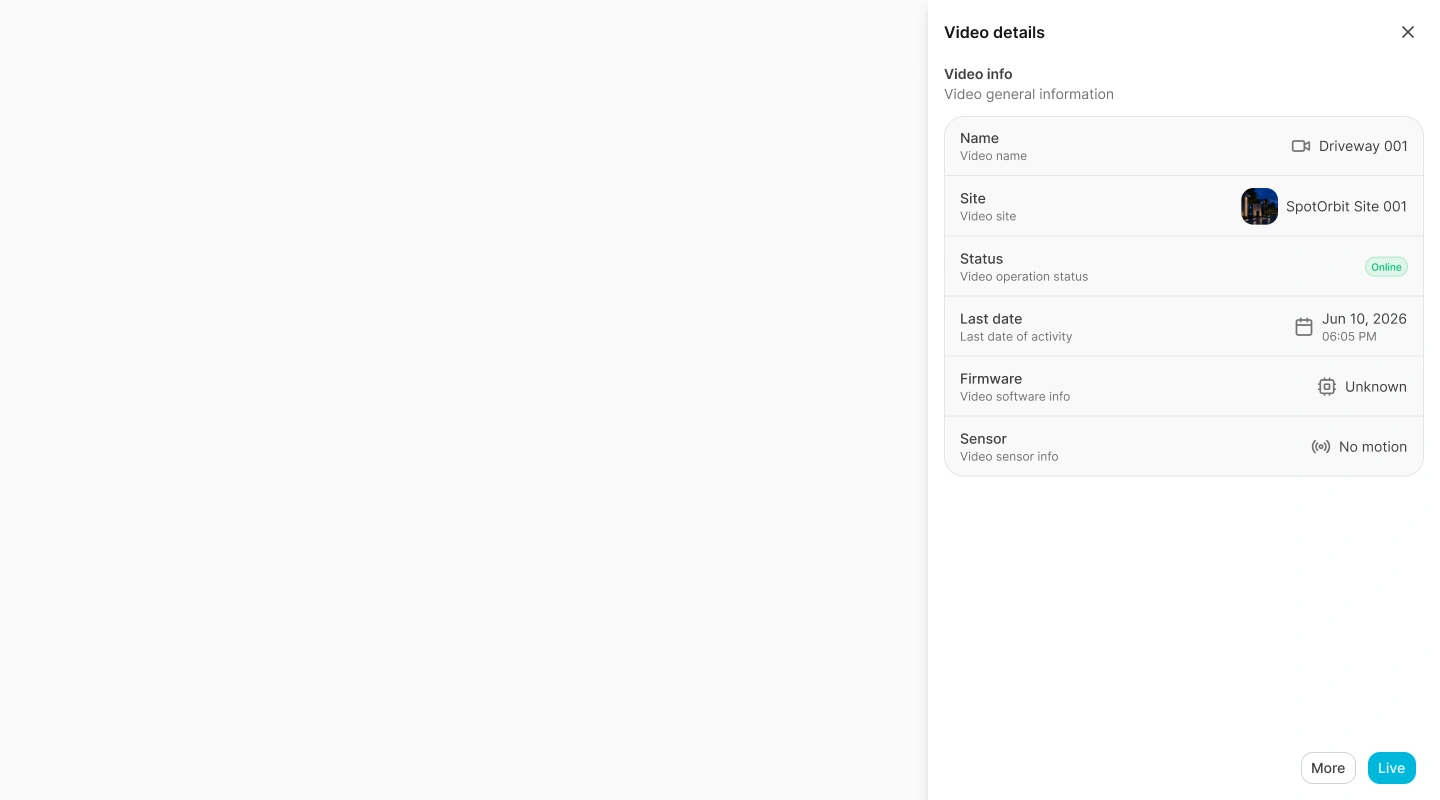
The camera table shows name and site, online status, last contact, firmware, and open sensor alerts. Search requires at least three characters and results use cursor pagination. For one selected camera, you can open quick details, the full information page, or the live video dialog.
Review a camera
Find the camera
Confirm the site and enter at least three characters when you need to search the server-side camera list.
Check the row
Review its Online or Offline state, last recorded contact, firmware version, and number of open alerts.
Choose a view
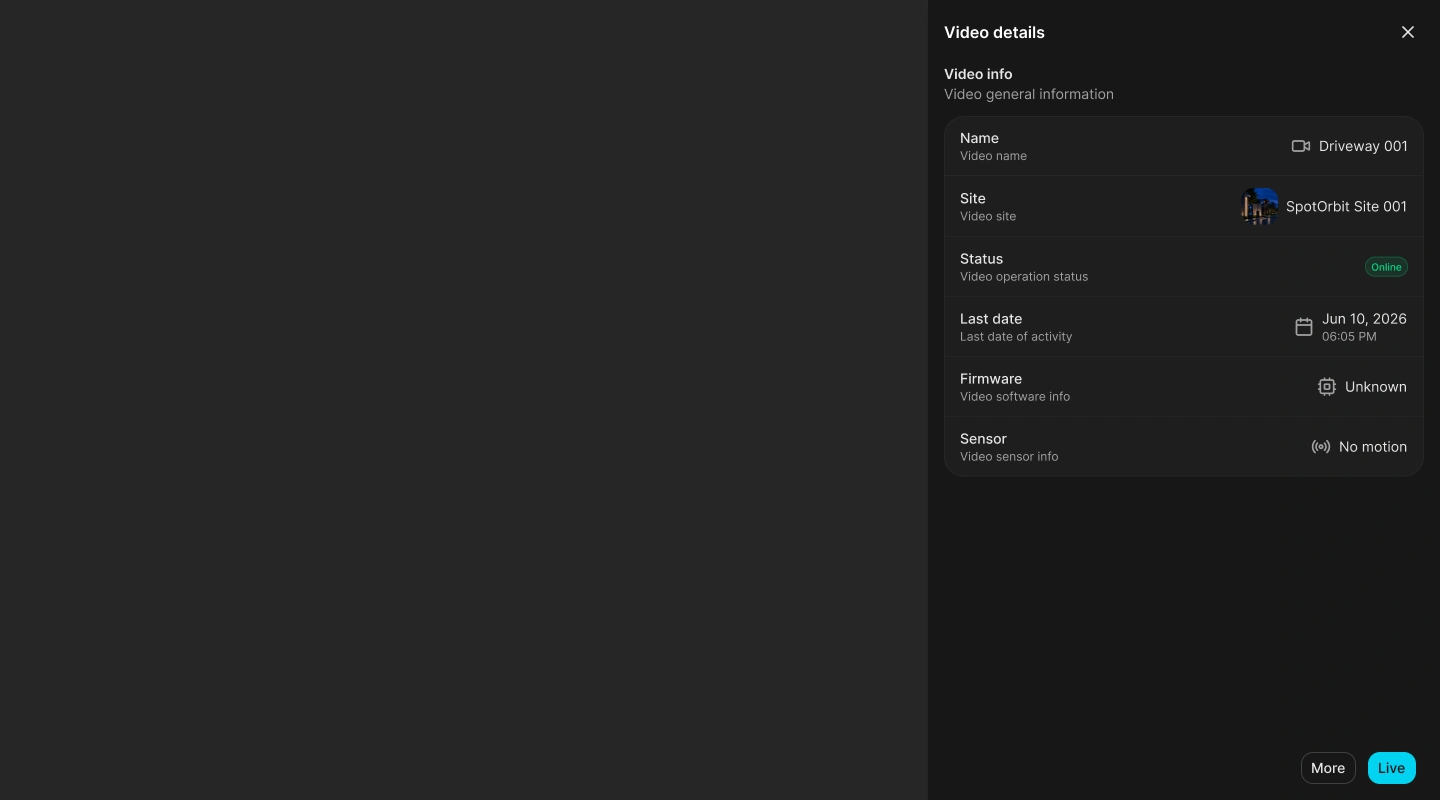
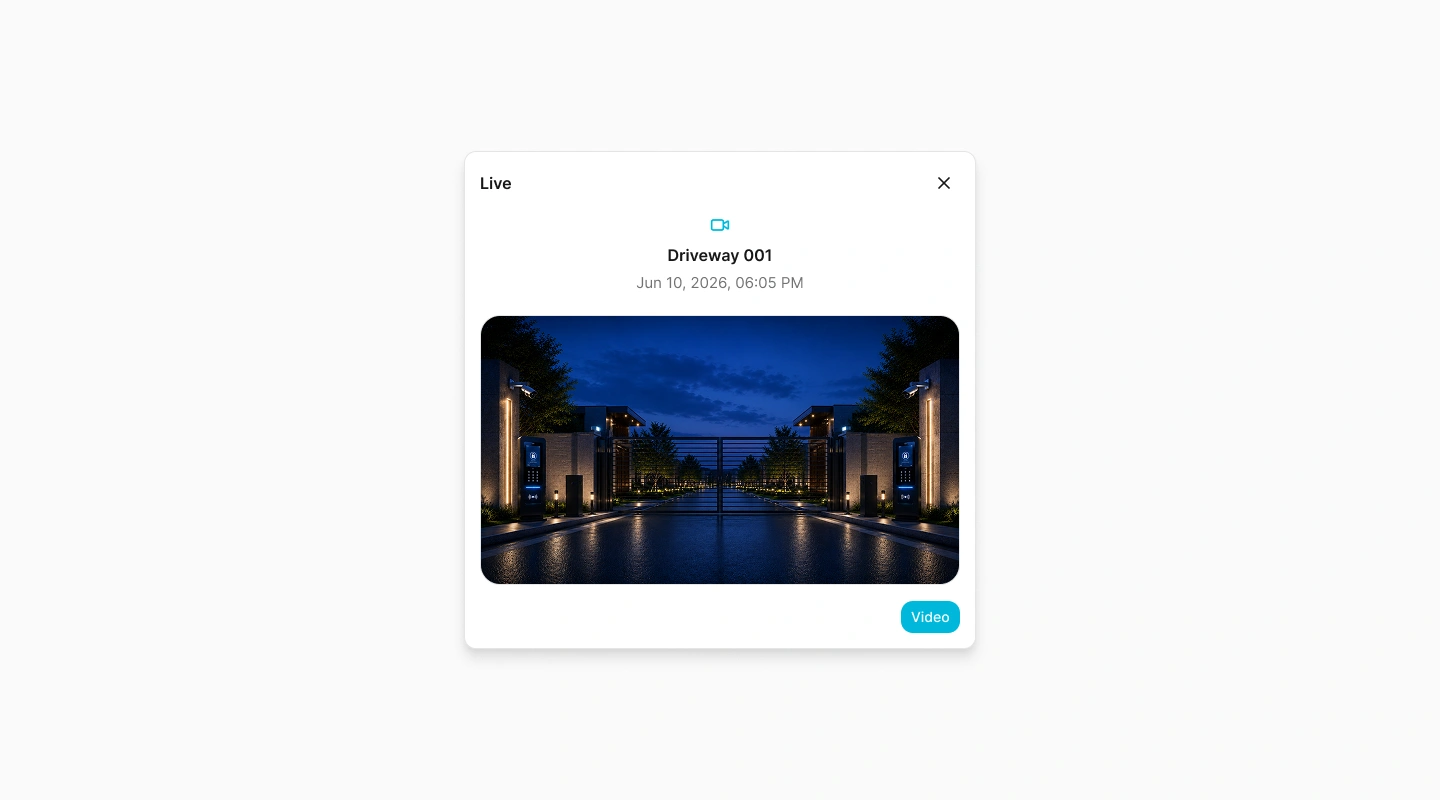
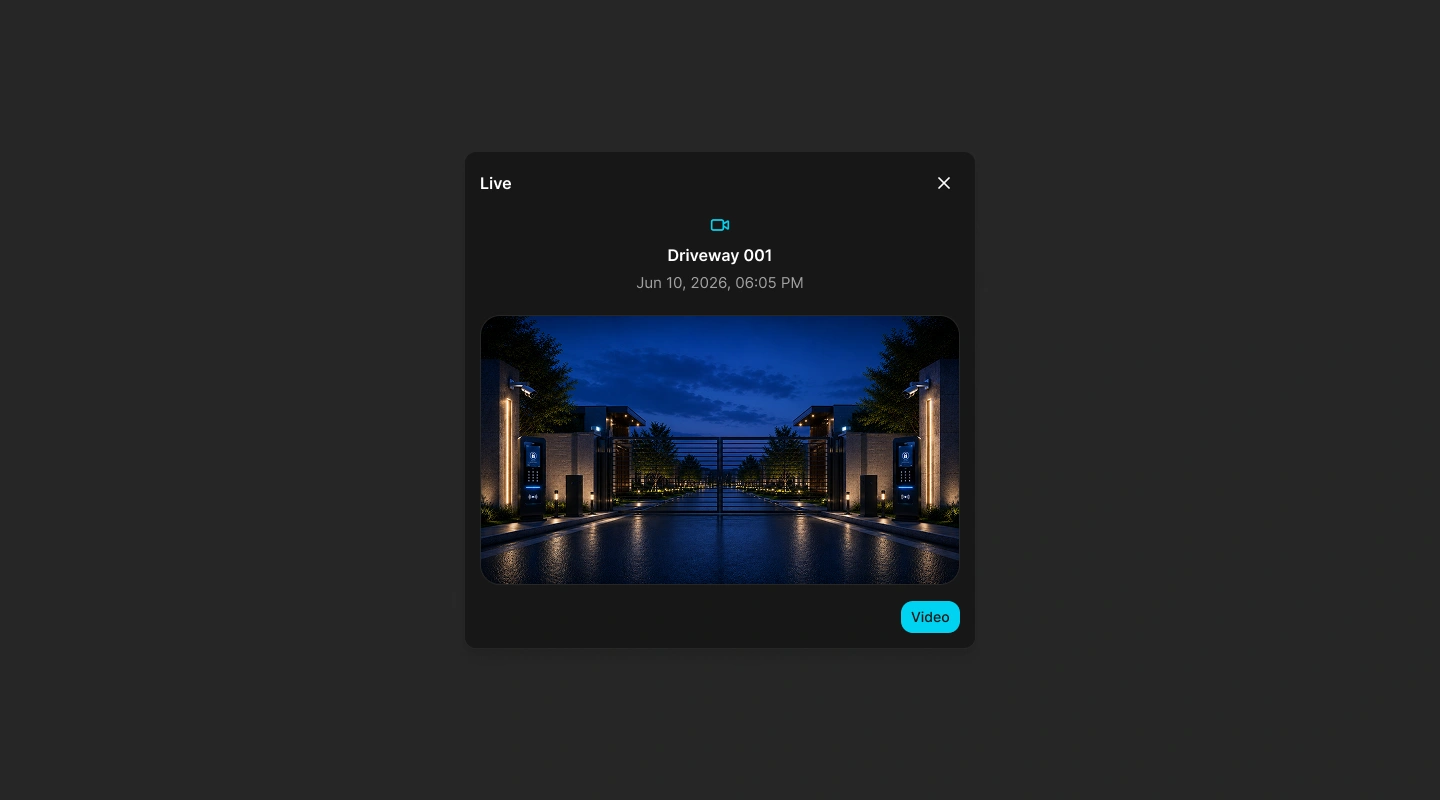
Select Details for a quick drawer, More for the dedicated Video info page, or Live for the live video dialog.
Navigate related cameras
On the full page, use the previous and next controls to move through the loaded cameras without returning to the table.
View live video and activity
Live opens the live-view dialog for the selected camera and displays its name and last recorded date. The full camera workspace also contains Video info and Activity.
Activity separates Alerts, Reconnects, and Crashes. Choose an activity row to review its details. Camera activity can also expose media; when available, the media dialog lets you switch between the supported media modes and review the selected record.
Frequently asked questions (FAQ)
Enter at least three characters. Shorter text is not sent as a search.
Details opens a quick drawer. More opens the full camera workspace with Video info and Activity.
Media is shown only when the selected activity record and backend provide a supported media reference.
Related content
- Devices — Review gate hardware and device activity.
- Site info — Return to the selected site's overview.
- Zones and spots — Review the physical layout monitored by cameras.
- Reservations — Review operational activity tied to bookings.