Account activity
Use Activity to review device operations associated with one account and inspect the context of an individual record.
Overview
The Activity page belongs to the account selected in the detail workspace. Its table shows the device and site, occurrence date, and operation status for the activity returned on the current page. You can search those loaded rows, customize their visible columns, change the page size, move through available pages, and open a details drawer.
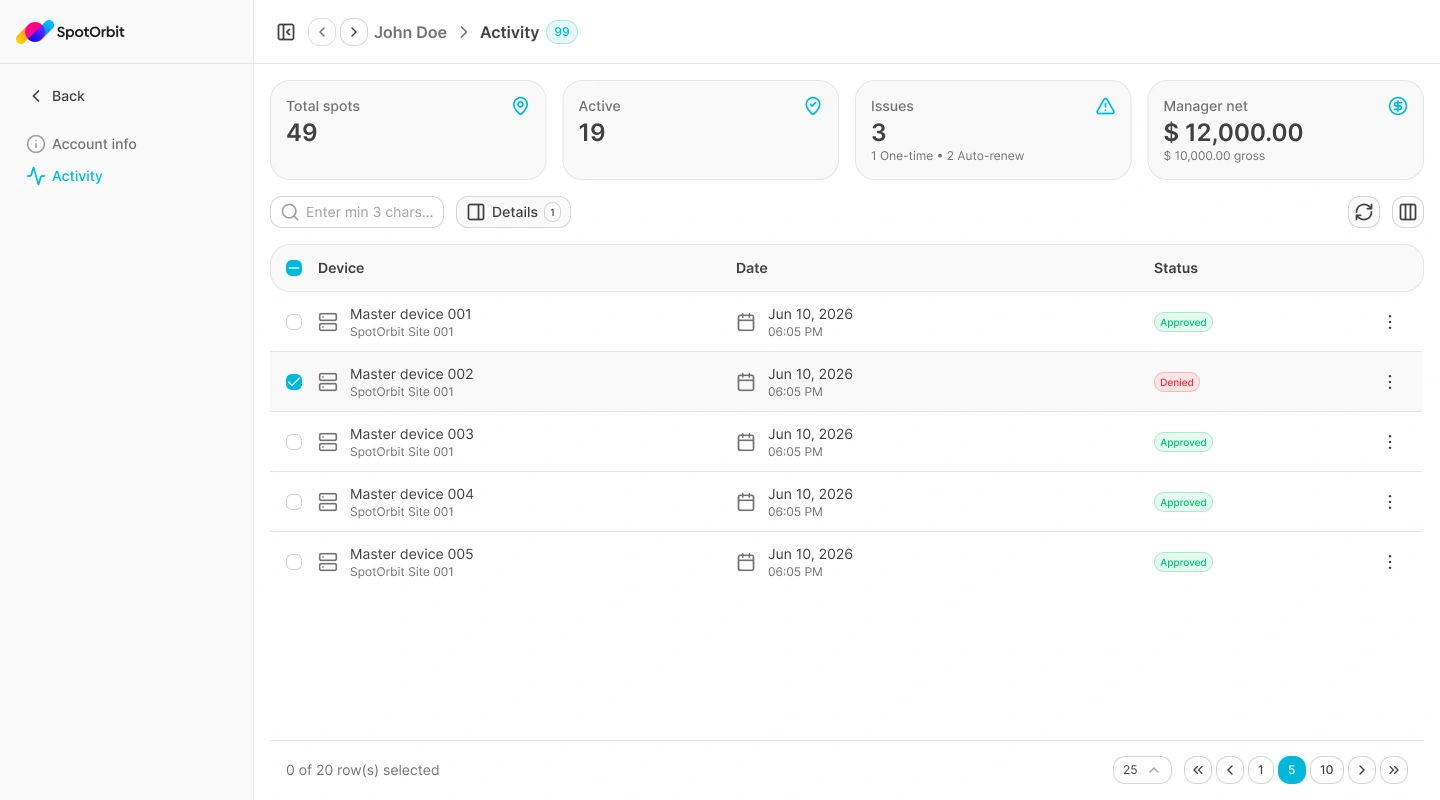
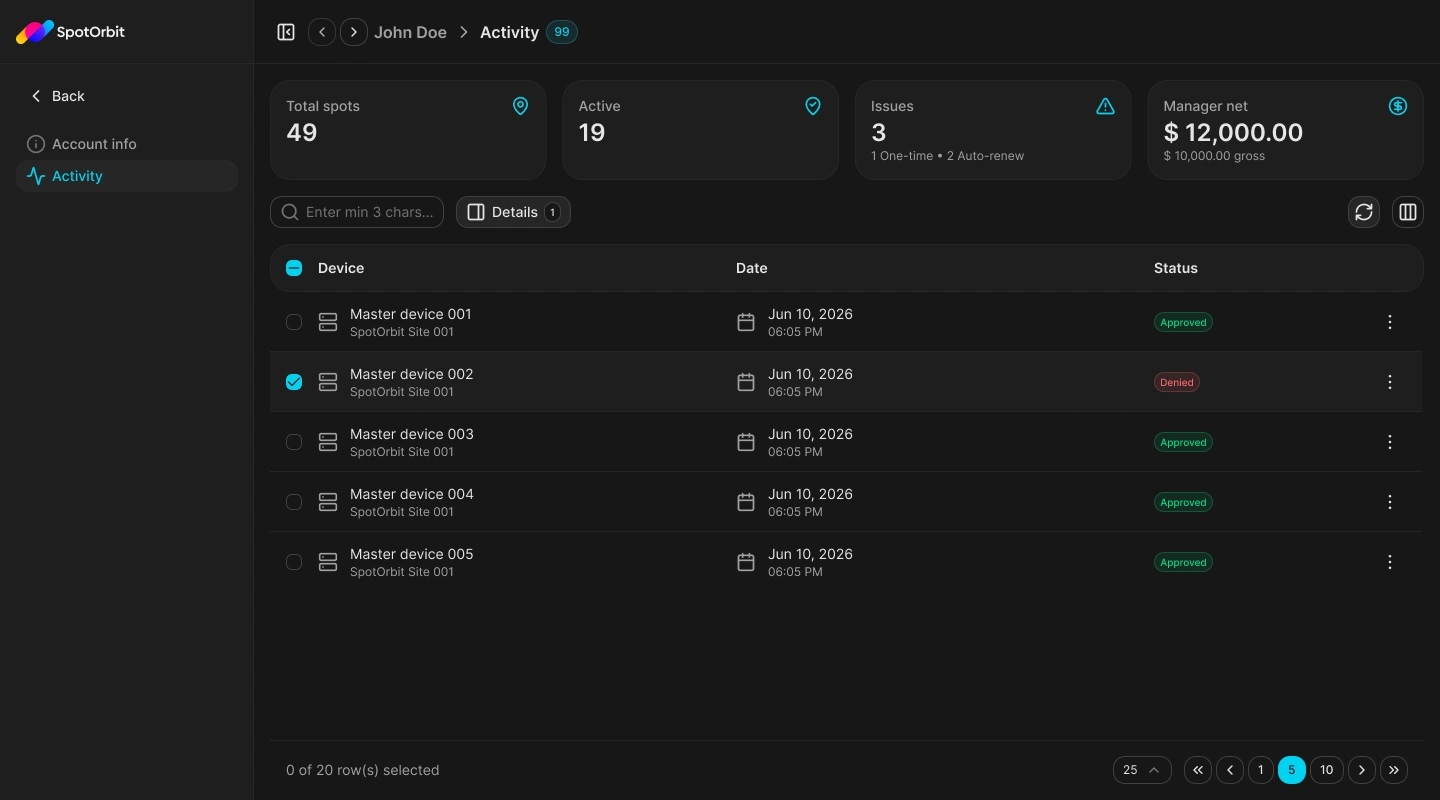
The current Activity table does not provide date or status filters, export, editing, or deletion.
Open account activity
Open the full account page
From Accounts, open the actions for the intended account and select More.
Select Activity
Choose Activity from the account detail sidebar. The selected account remains identified in the page header.
Verify the account
Check the displayed account name before interpreting the records. Use the previous and next controls when you need to move to another loaded account while remaining in Activity.
Select Back to return to the Accounts list or Account info to review the same account's identity, role, status, dates, and sites.
Read the activity table
Each activity row displays:
- Device: the device name with its site name underneath.
- Date: when the activity occurred.
- Status: the recorded outcome or operation status.
- Actions: a menu containing Details.
When no records are available, the table displays No activity found. A loading state appears while a page is being retrieved, and an error message replaces the table when the activity request fails.
Search and customize the current page
Search the loaded activity
Enter at least three characters in the search field. The current page is matched against device name, site name, status, occurrence date, and available detail text.
Adjust the columns if needed
Open the columns button to hide, show, or reorder Device, Date, and Status. The selection and action columns remain fixed.
Clear the search
Clear the field to restore all activity rows loaded for that page.
Search is applied to the activity already returned for the current page; it does not request every historical page at once.
Navigate activity pages
The table initially requests 20 records. The footer lets you choose 10, 25, 50, or 100 and move through the pages currently known to the application.
Changing the page size returns Activity to the first page. While a page request is in progress, additional pagination changes are temporarily unavailable.
Open activity details
Open the three-dot menu for a row and select Details, or select exactly one row and use the Details button above the table.
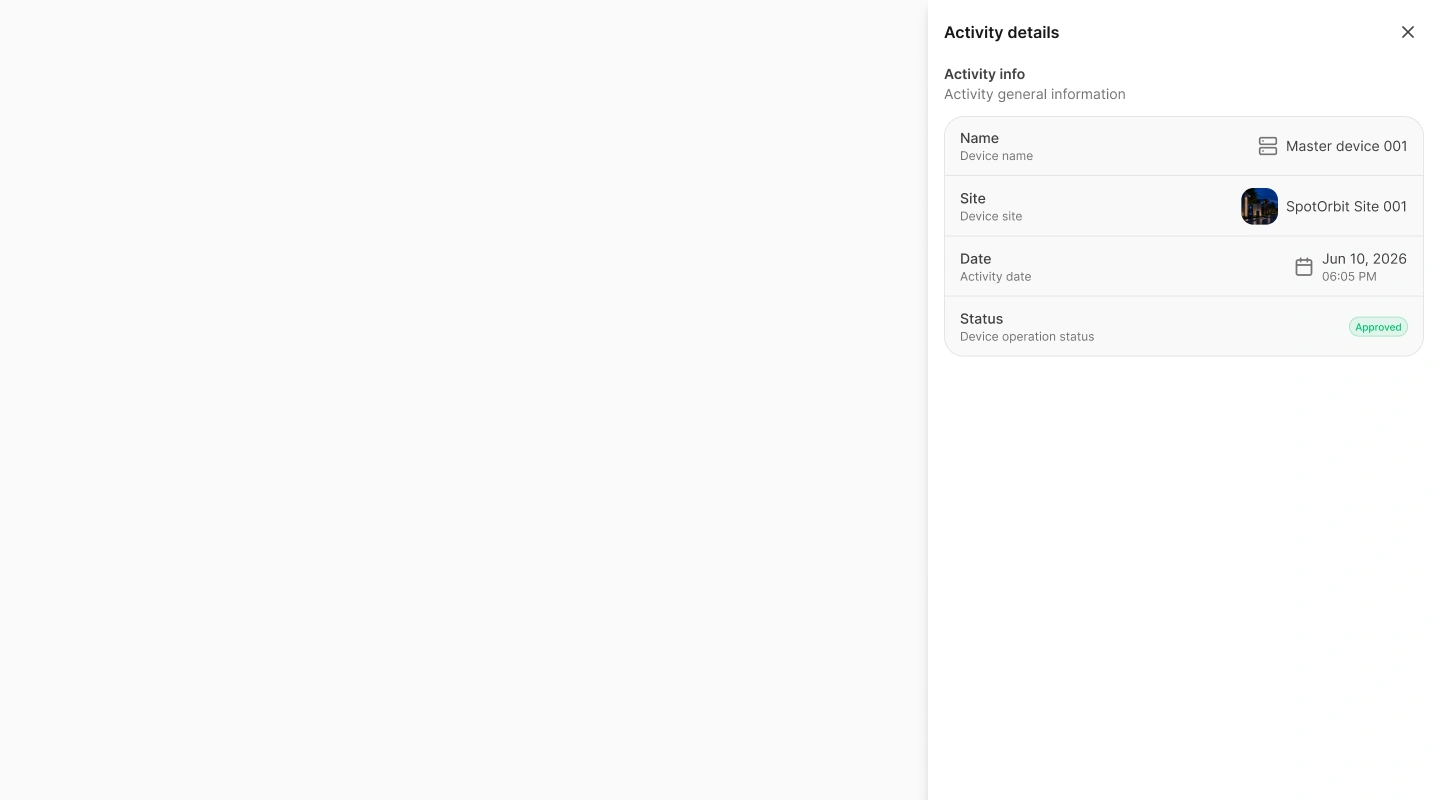
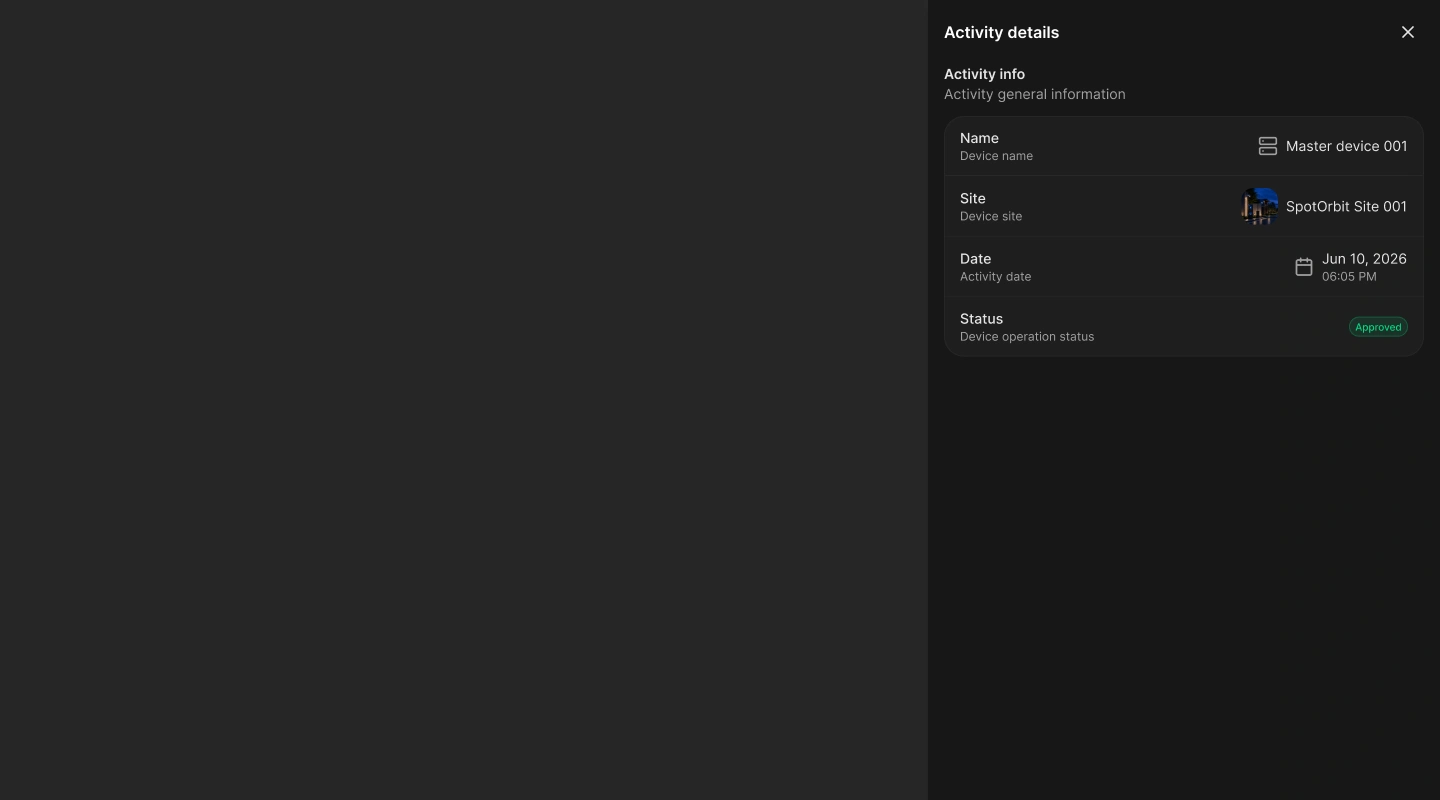
The drawer displays:
- Device name.
- Related site name and preview image when available.
- Activity date and time.
- Device operation status.
Select the close button to return to the table. The drawer is read-only.
Frequently asked questions (FAQ)
Search filters only the rows loaded on the current page. Clear the search, navigate to another page, and then search that page if needed.
No. The current account Activity page has no filter dialog. You can search the loaded page or navigate through its pages.
No. The current page does not expose an export action.
No. Account activity is read-only in this view.
A site preview appears only when the selected activity references a site that has an available preview image.
Related content
- Accounts — Find another account or use account-level actions.
- Account info — Review the selected account's identity, role, lifecycle, dates, and sites.
- Sites — Continue to site-level operational information.
- Getting started — Review navigation and access behavior in Spot Orbit Admin.